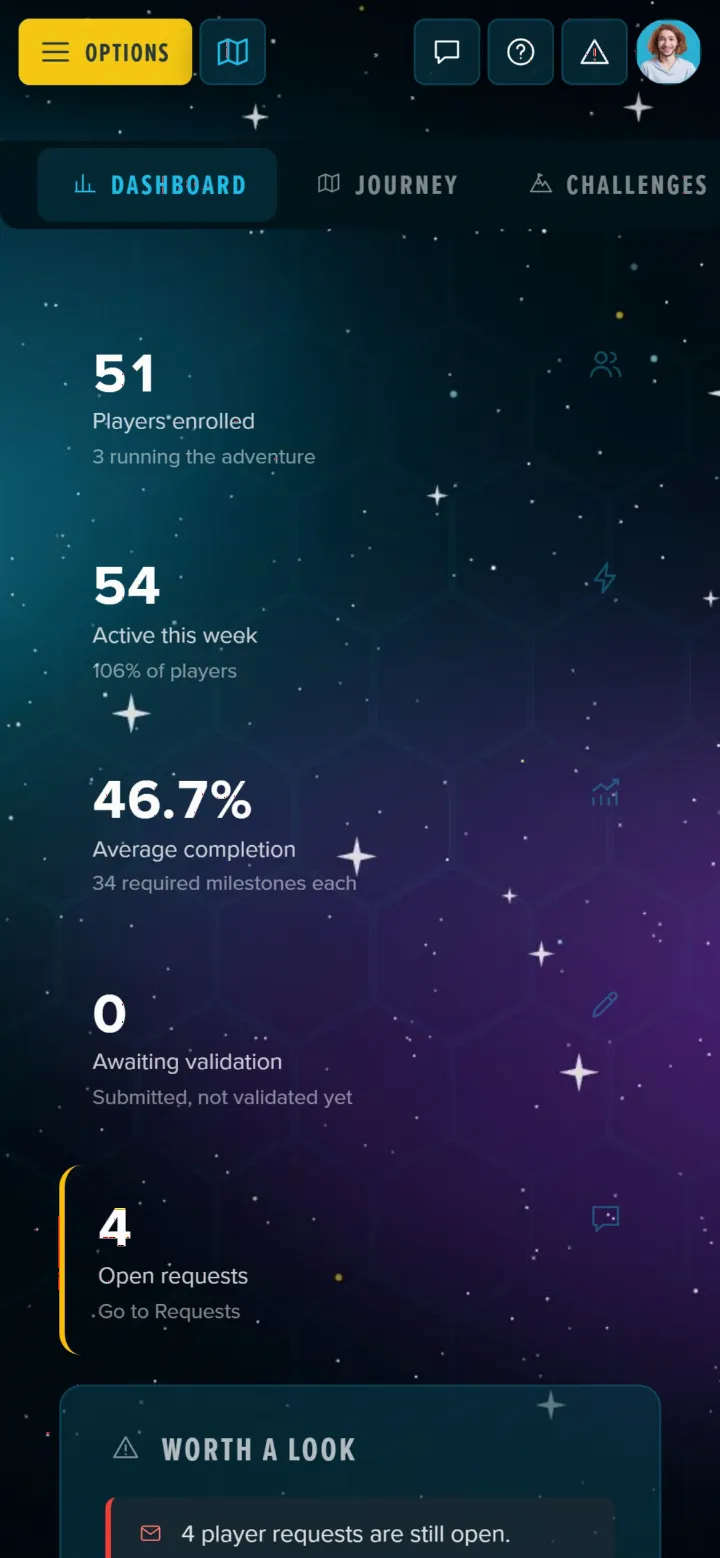
Manage Content is where everything an Adventure holds is listed, edited and tidied up: milestones, achievements, items, guilds, Tabis, posts, speakers, encounters, Garden content and the reports on what players did. Each kind of content has its own tab, and most of what you'd change often (a level, a cost, a path, a name) is edited right in the list, without opening an editor. This page goes through every tab.
Getting There
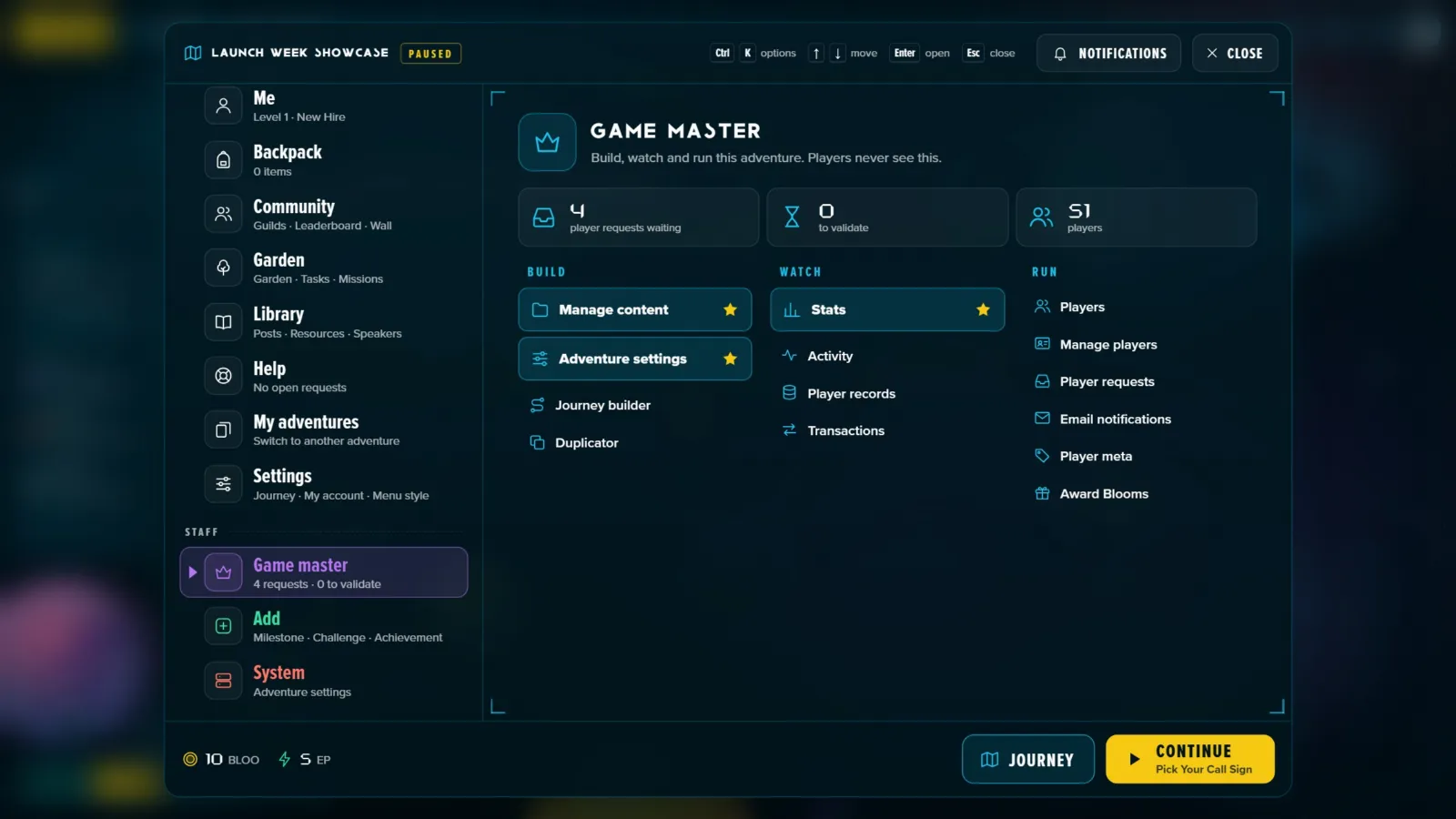
Manage Content is for the Adventure's owner, its Game Masters and administrators. In the New view, open the menu (Options, or Ctrl+K): the Staff block's Game Master section has Build, and Manage content is its first link, beside Adventure settings, the Journey builder and the Duplicator. In the Classic view it's in the menu's Admin Tools column. Players never see either.
The Dashboard
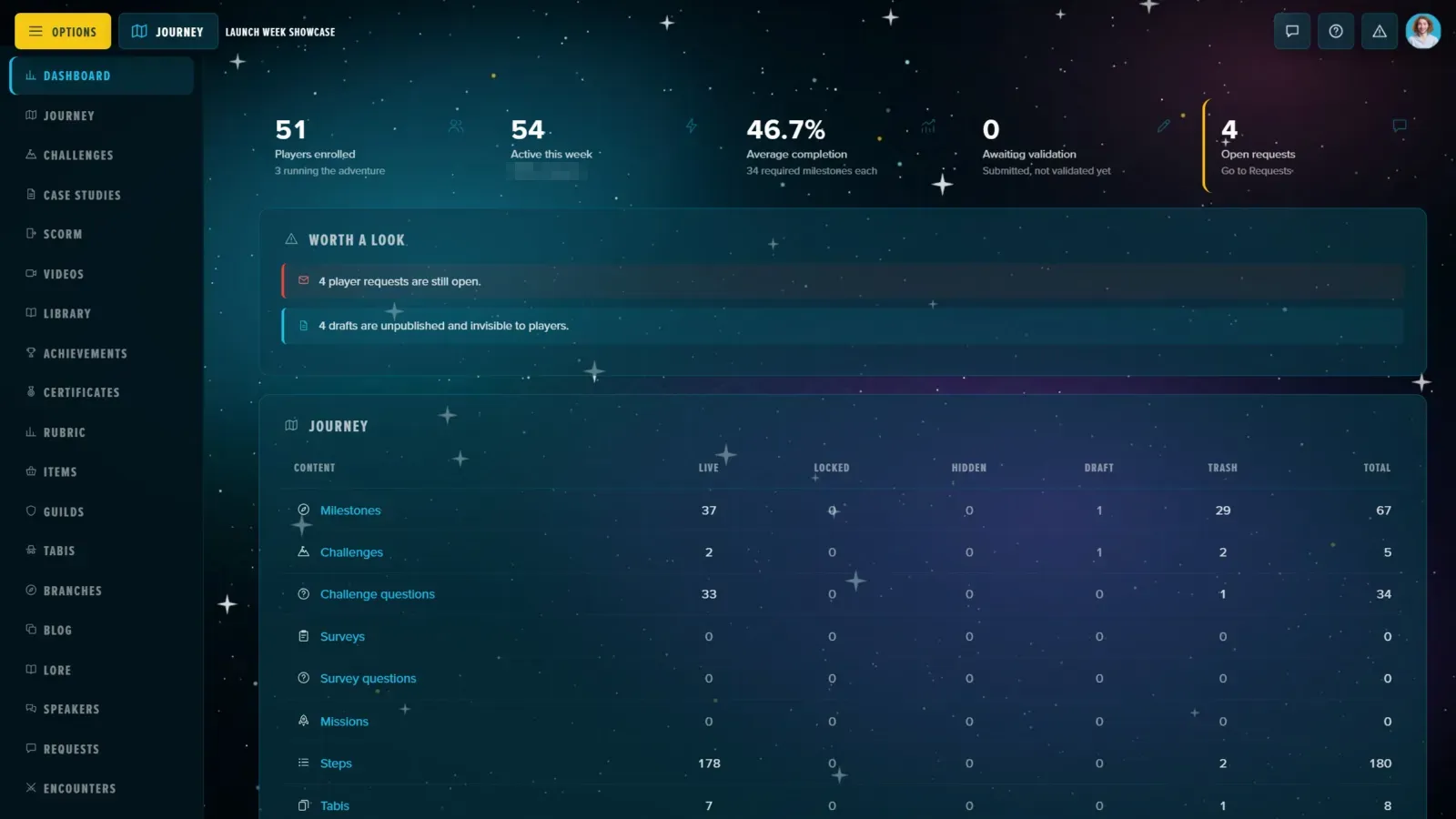
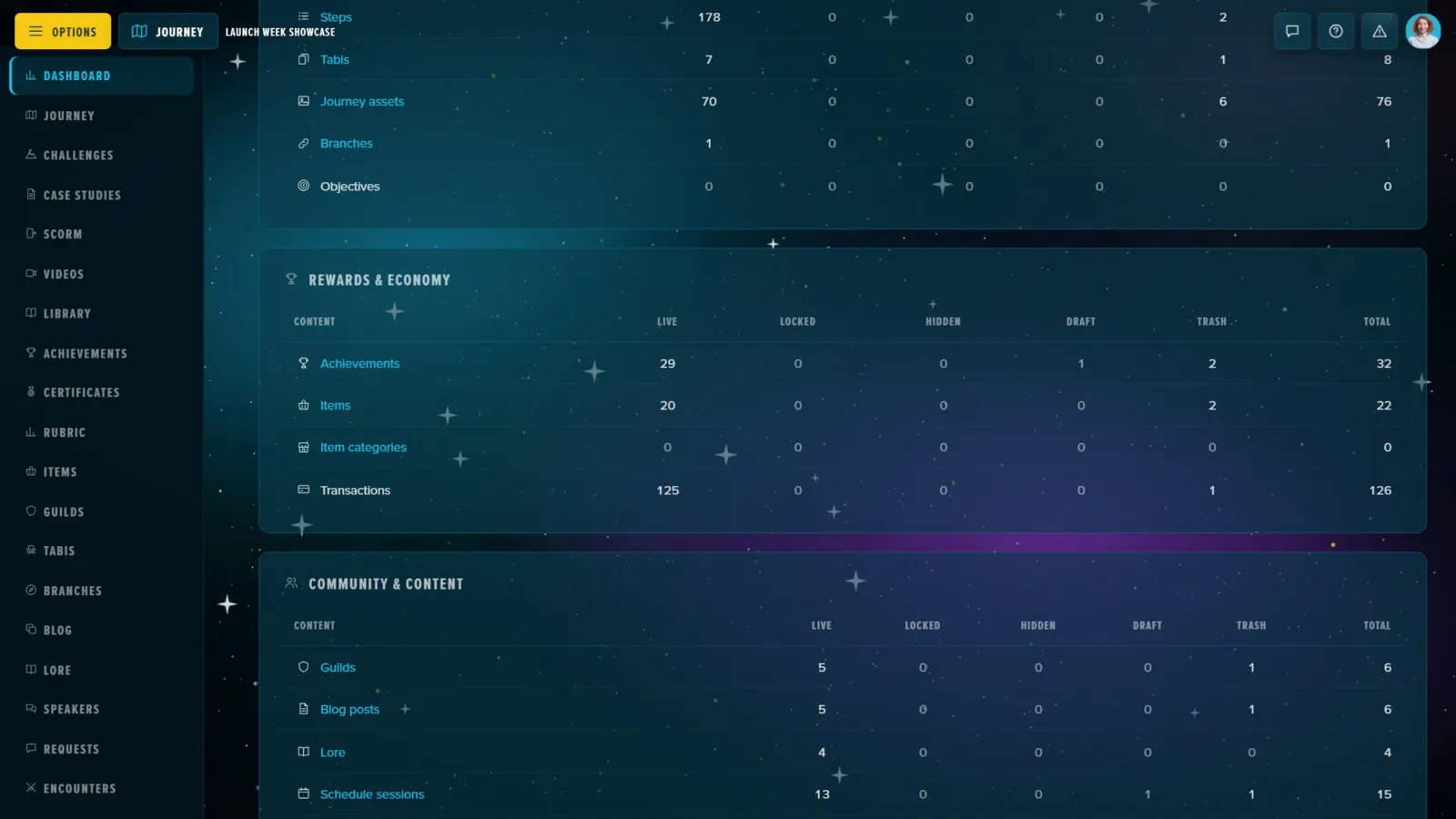
Manage Content opens on its Dashboard. The rail on the left lists the tabs; the dashboard counts what the Adventure holds and flags what needs you.
- Five tiles: players enrolled, active this week, average completion, hand-ins awaiting validation and open requests.
- Worth a look: what needs attention now.
- Journey, Rewards & economy and Community & content: one row per kind of content, split by status. Each label opens the tab that edits it. A section that's switched off still shows its row when it holds content, marked Off.
Live, Locked and Hidden milestones all count towards journey and Tabi completion; Drafts and Trash don't.
Which Tabs You'll See
- Always: Dashboard, Journey, Certificates, Tabis, Branches and Requests.
- Content with its own section: Achievements, Items (with the Item Shop or the Backpack), Guilds, Blog, Lore and Speakers. These stay in the rail even while their section is switched off, so you can set content up before switching it on.
- Reports, once there's something to report: Validation (while a milestone requires it), Challenges (once a challenge has been played), Case Studies, SCORM and Videos (once the Adventure has that kind of step), and the Library (once it has material for study notes).
- Rubric, when Graduation Criteria are switched on.
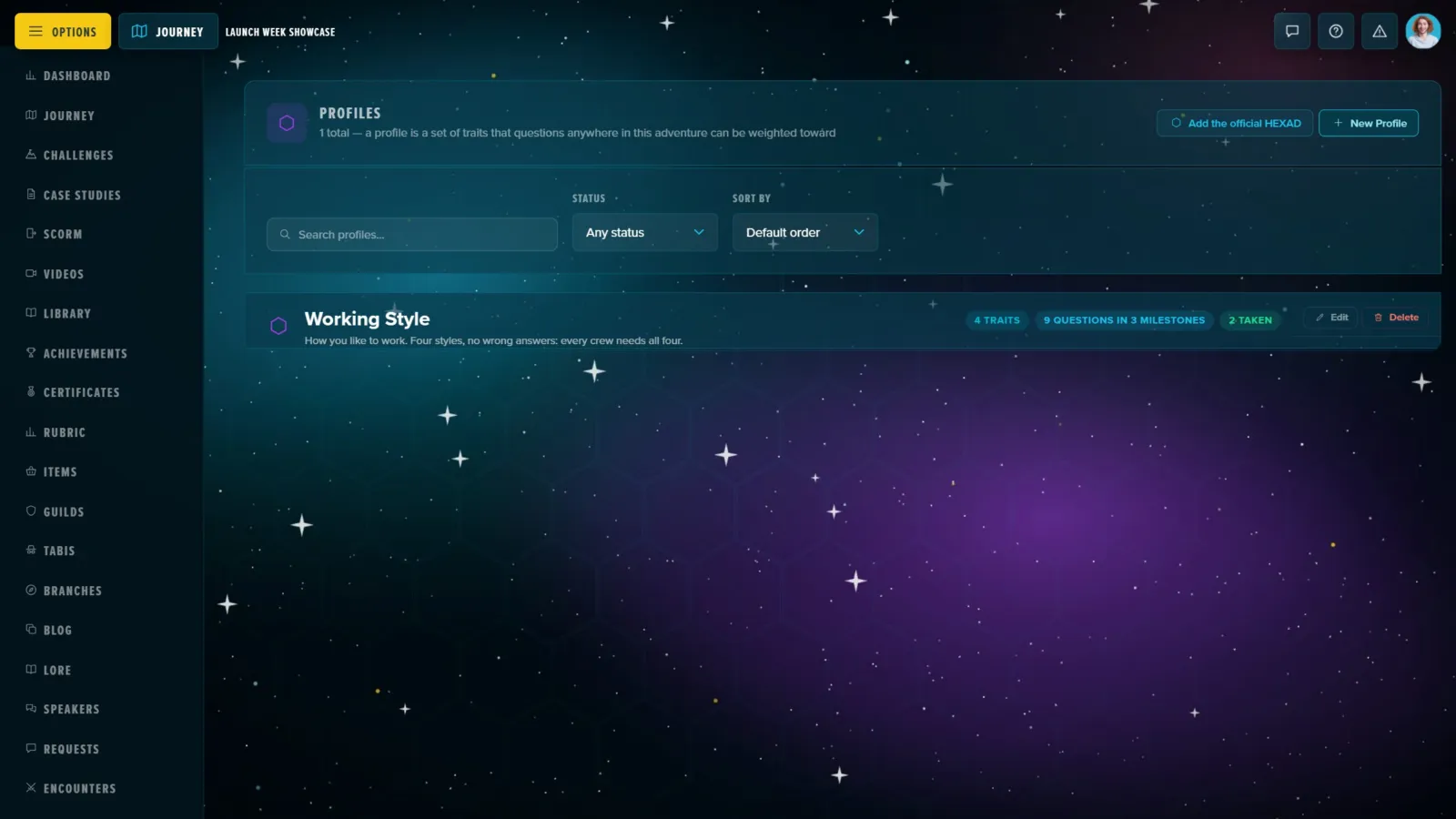
- Encounters, Consequences, Skills, Tasks and Missions, and Profiles when Profile Tests are switched on.
A tab's name follows your Adventure's own word where you've renamed the section (Journey, Achievements, Challenges, Guilds, Speakers). On Enterprise servers a Prize Draws tab manages lotteries (see Prize Draws).
A cohort shows only what the cohort itself owns: Requests (its first tab), Validation, Challenges, SCORM, Guilds, the achievements awarded, Tasks and Missions. Milestones, achievements, items, Tabis and the rest belong to the template, and are managed there. See Adventure Templates & Scaling Cohorts.
An NPC sees the Dashboard, Guilds (where they can only appoint a leader), Requests, Validation, Challenges and SCORM, to read rather than change.
Journey
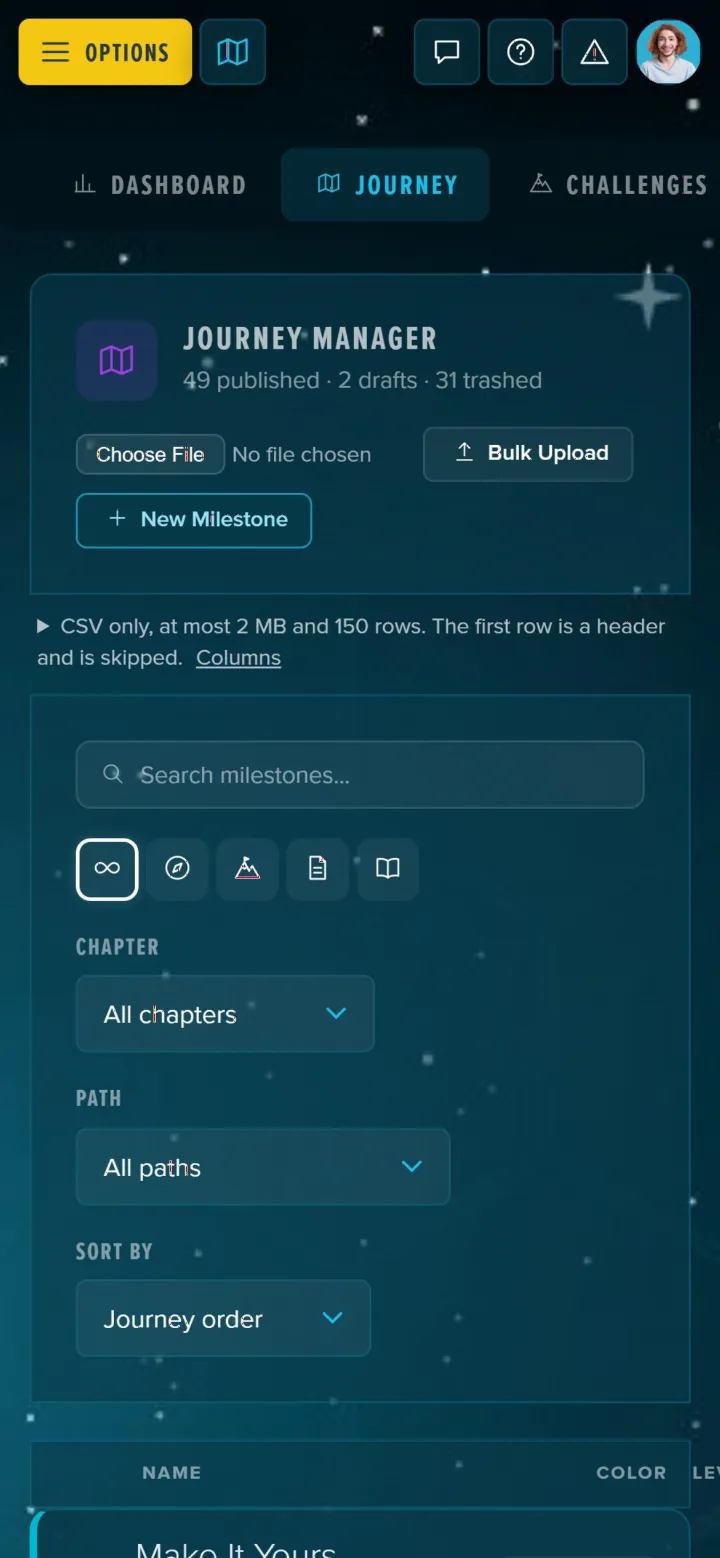
The Journey Manager lists every milestone under its Tabi, in journey order (drag a row to change the order). Each row shows its level and rewards, and its Tabi and path can be changed right there. Bulk Upload adds milestones from a CSV file and New Milestone opens the milestone editor. Search, the type buttons, the chapter and path filters and the sort (journey order, level, title, path, colour) narrow the list.
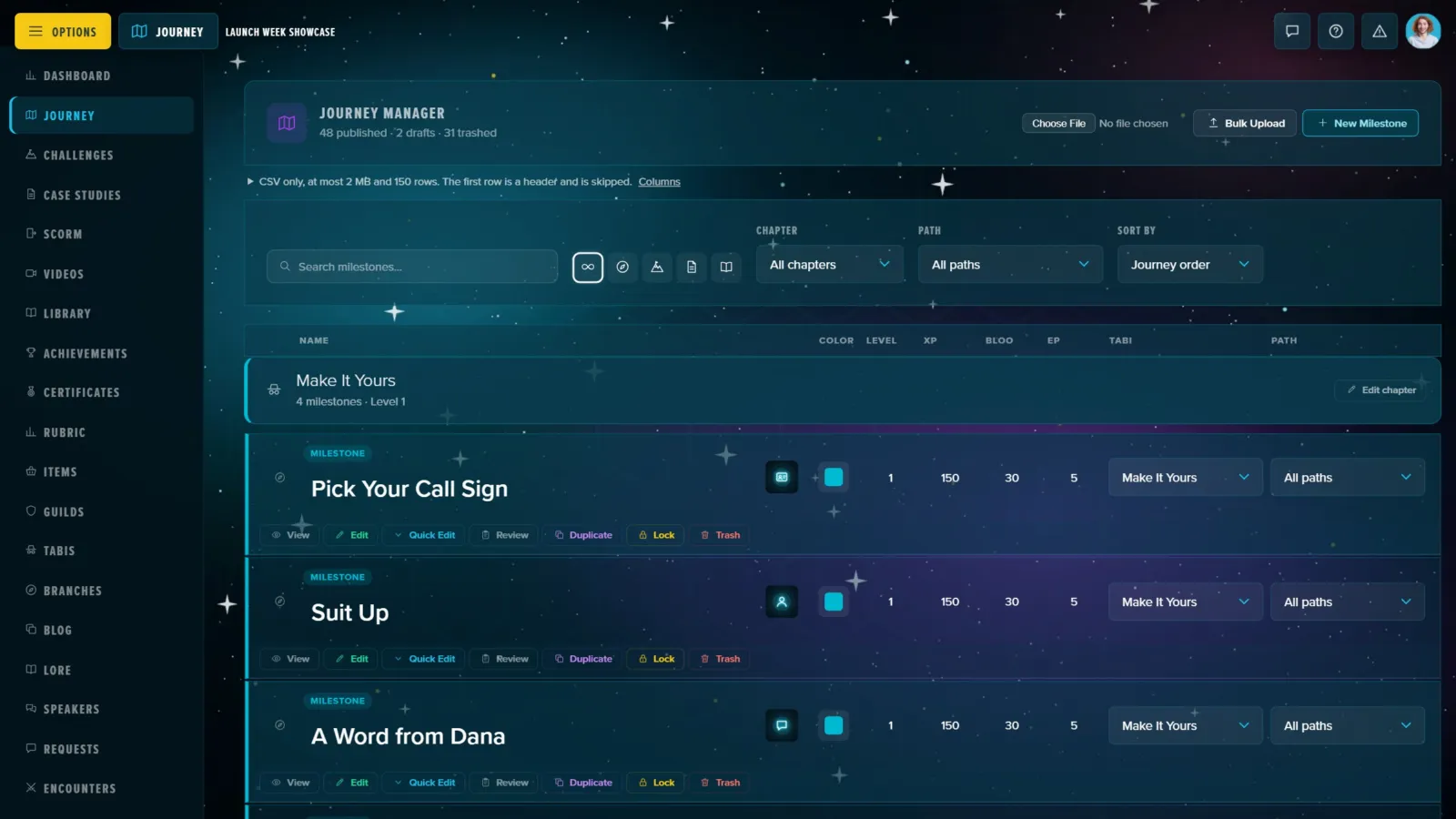
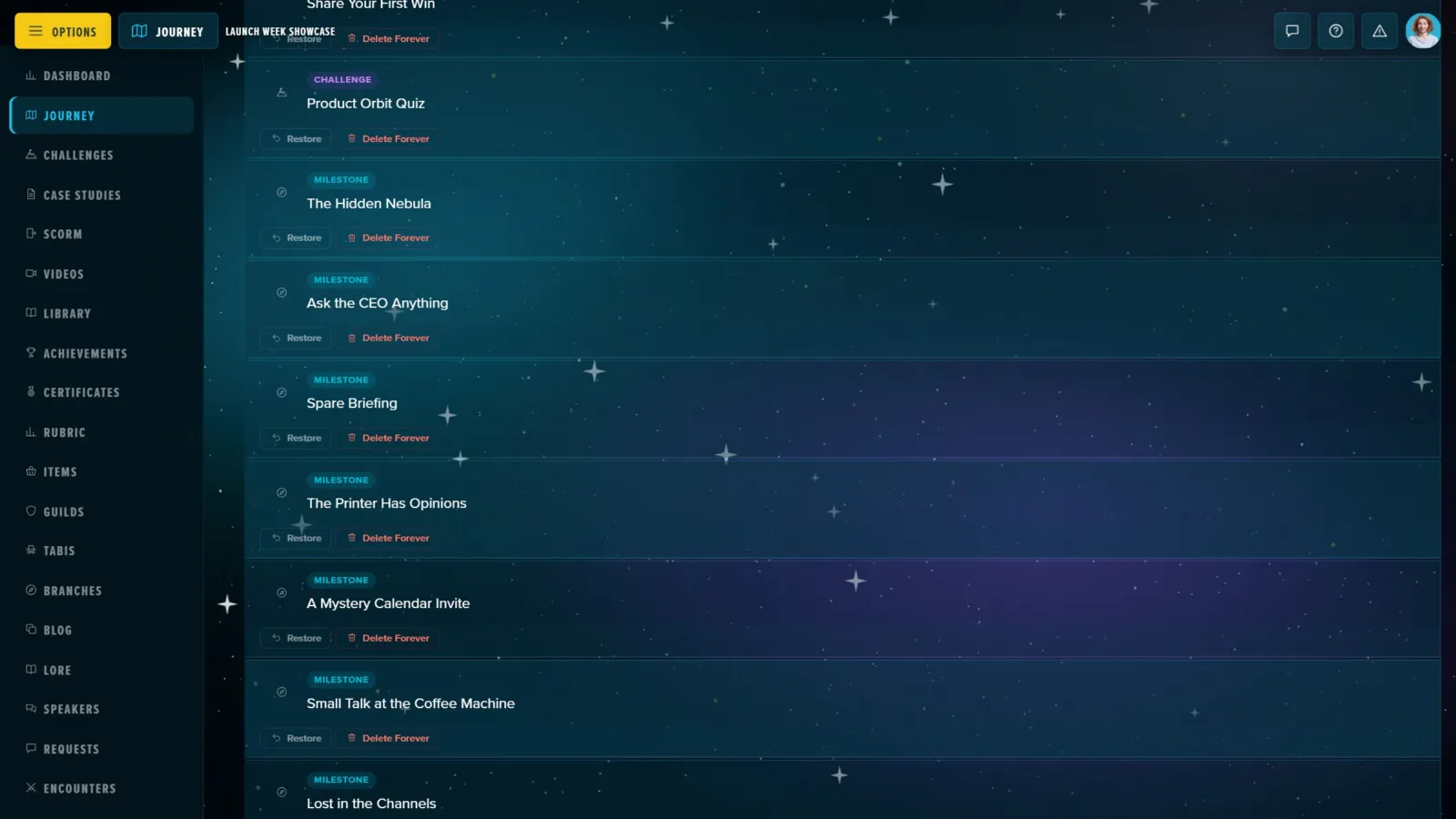
A row's actions: View, Edit (the full editor), Quick Edit (its start date and deadline, saved as you change them), Review (the players' submissions), Duplicate, Lock and Trash. Drafts wait in their own list below the chapters with Edit, Publish and Trash; trashed milestones below that, with Restore and Delete Forever.


See How to Build a Milestone, Step by Step and Bulk Uploads with CSV.
Reports: What Players Did
Validation
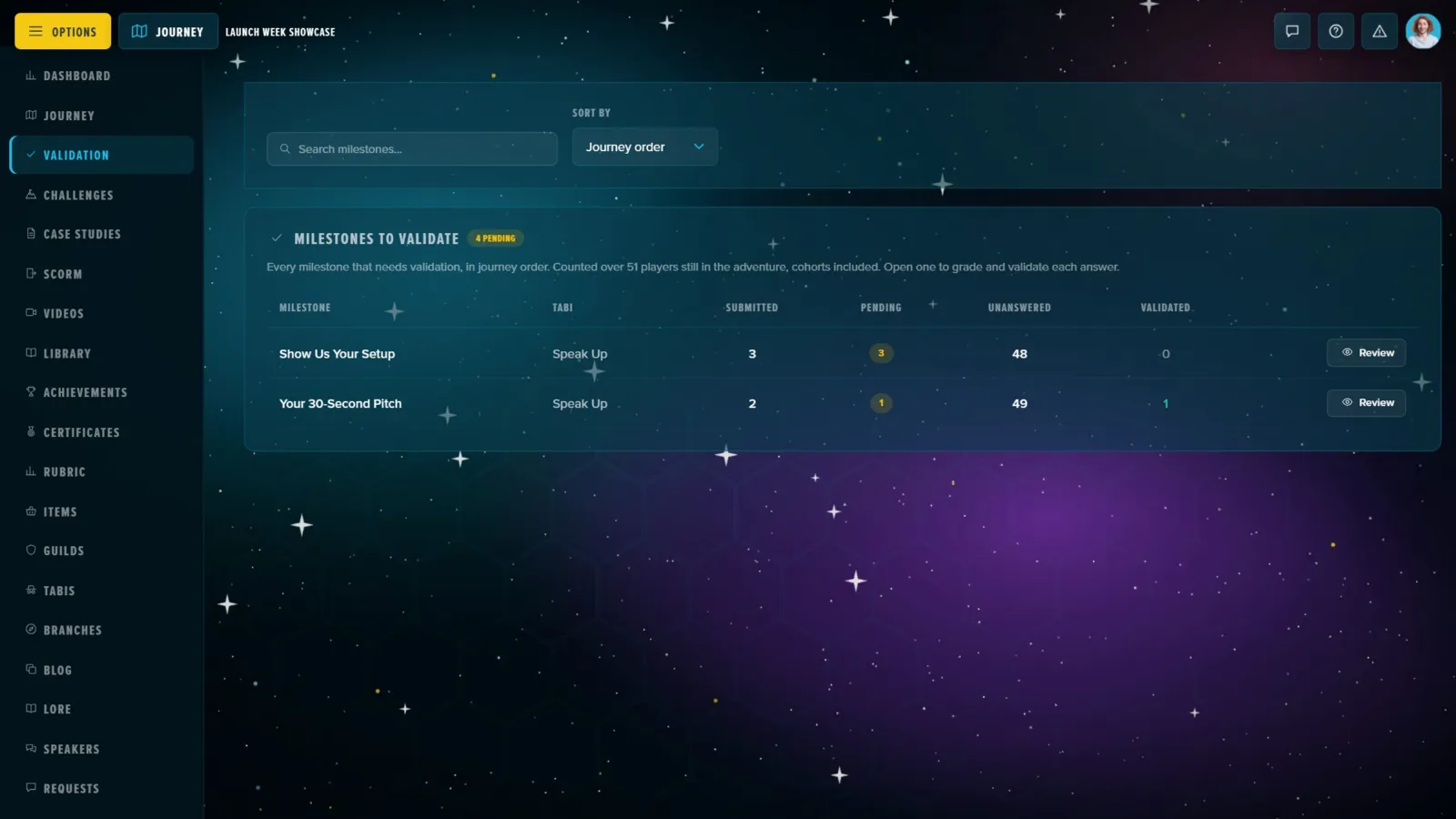
Shown while any milestone requires validation (a setting on the milestone). Every such milestone is listed in journey order under its Tabi, with how many players submitted, how many are waiting, validated or sent back. Review opens a milestone's queue: each player's hand-in and grade, Validate or Invalidate, Remind and Download CSV. See Reviewing & Grading Submissions in Bulk.
Challenges
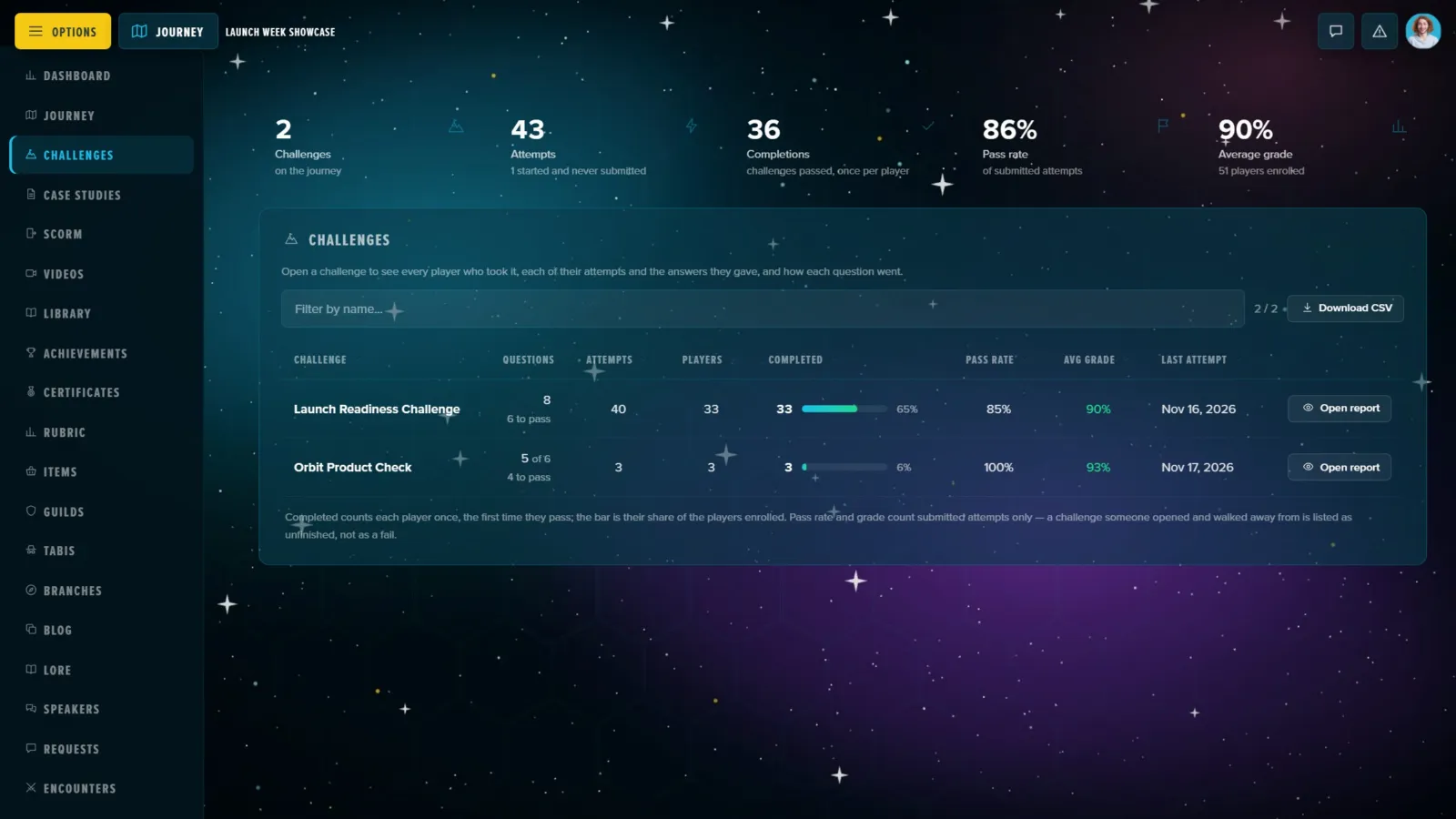
Totals across the challenges (attempts, completions, pass rate, average grade), then each challenge with its questions, attempts, players, completions, pass rate, average grade and last attempt, and Download CSV. Open report shows everyone who took one, each attempt and its answers, and how each question went. A player counts as completed once, the first time they pass; the pass rate and grade count submitted attempts only. Challenges themselves are made under Journey.
Case Studies, SCORM and Videos
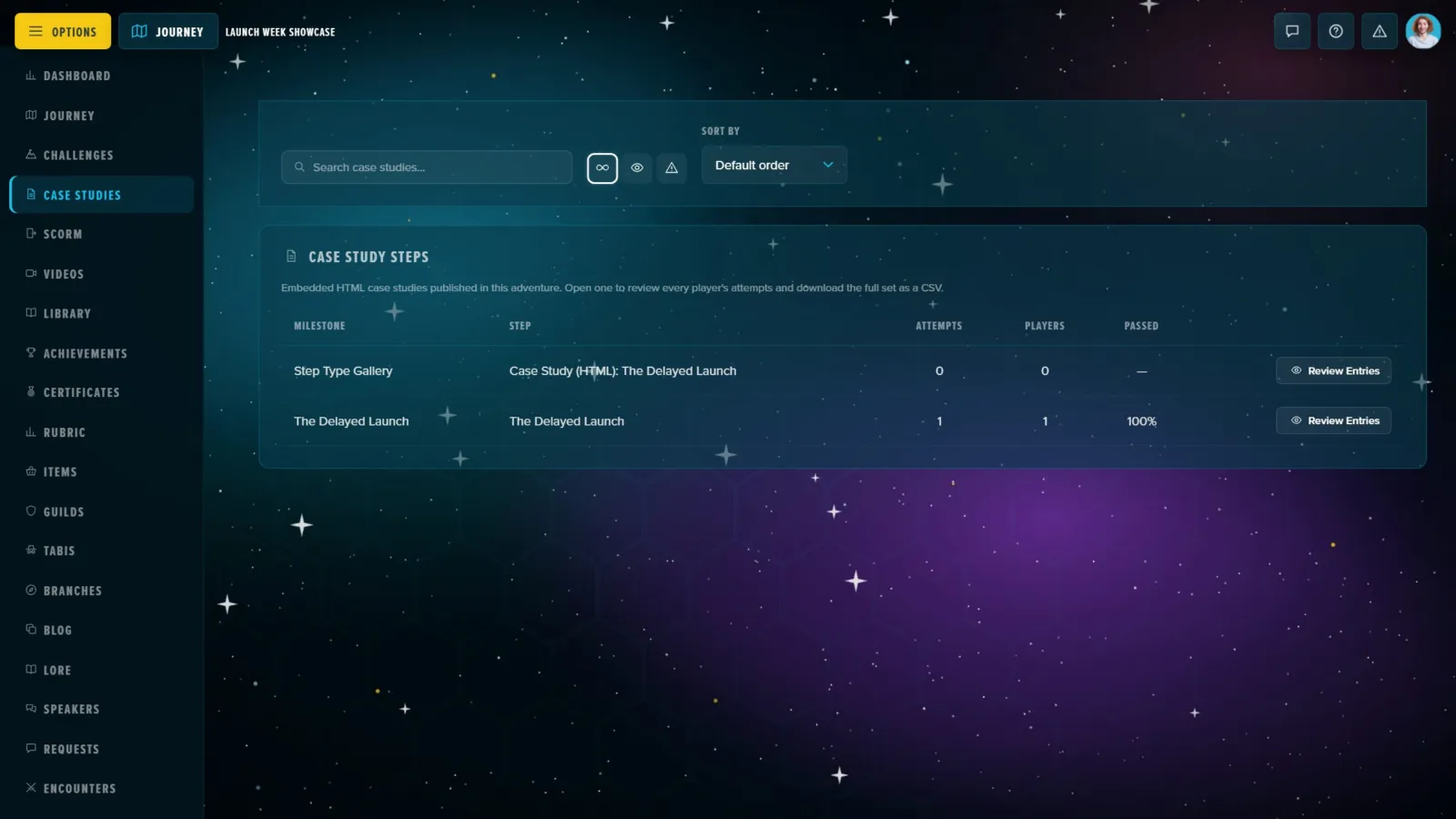
- Case Studies: each case study step with its attempts, players and pass rate. Review Entries lists every attempt, with the best attempt per player, Regrade all and Download CSV.
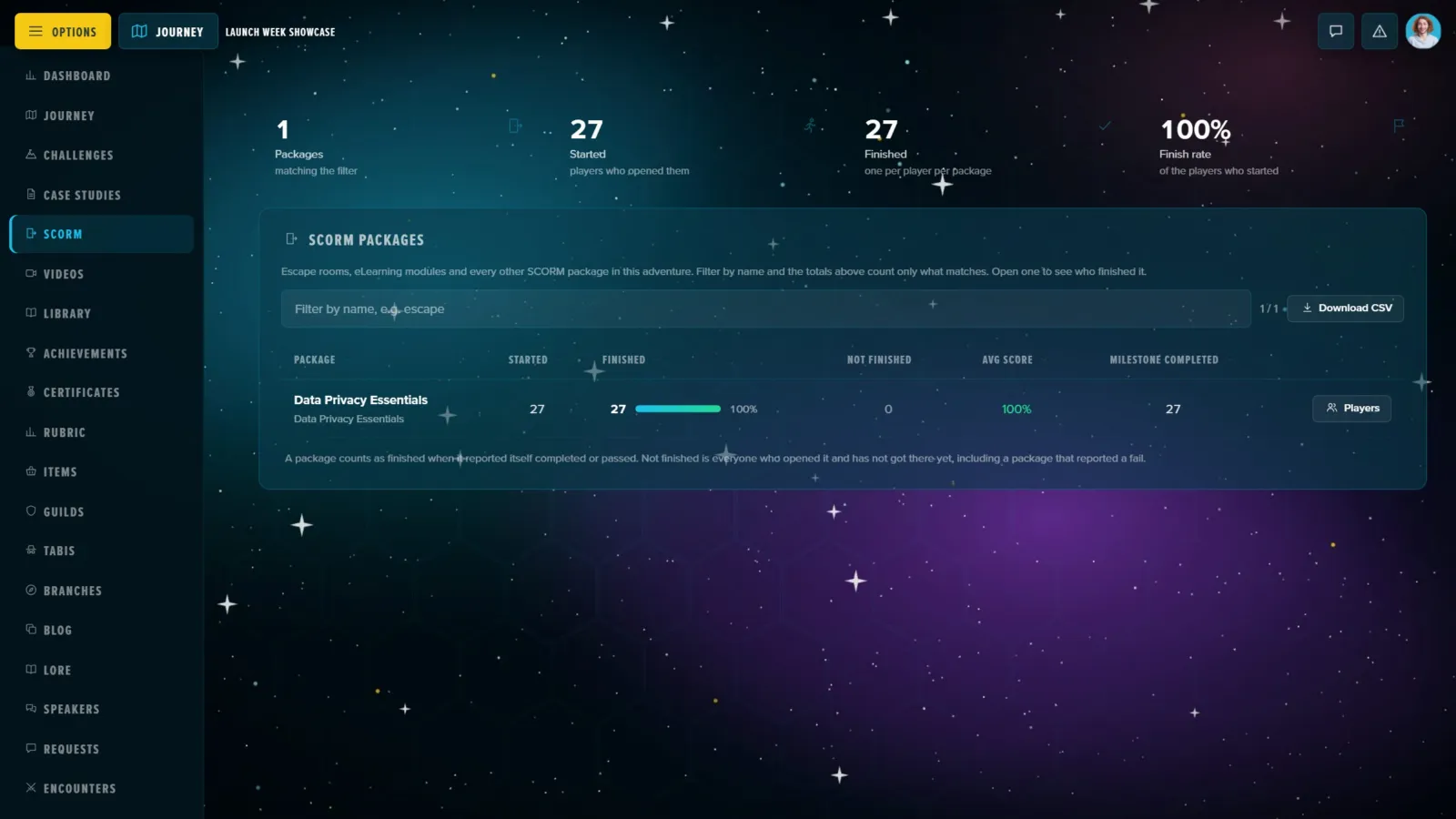
- SCORM: each package with started, finished, not finished, the average score and whether the milestone holding it was completed; a filter by name, Download CSV, and Players for who opened it, how far they got and their score. See How to Add a SCORM Package.
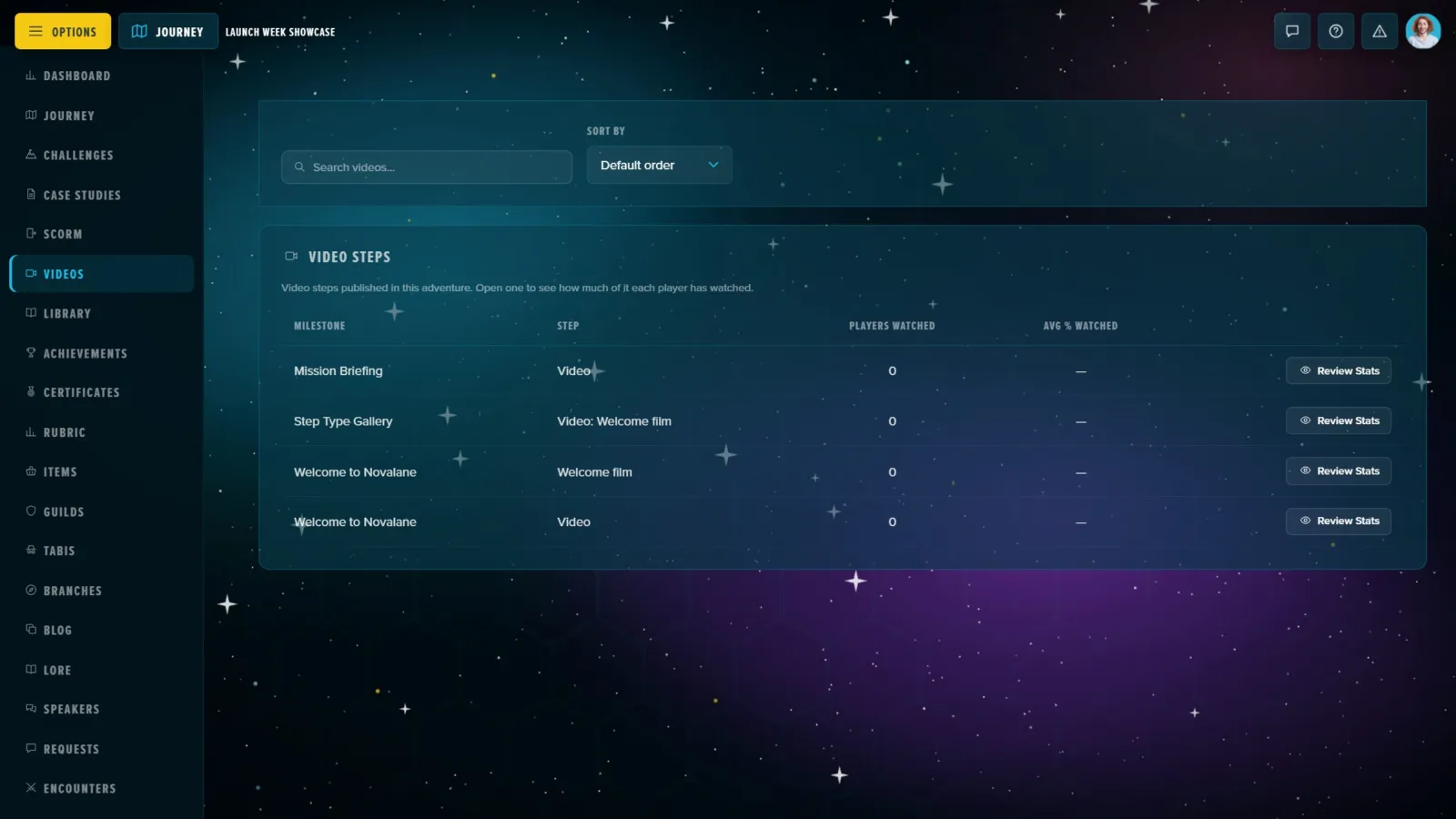
- Videos: each video step with how many players watched and the average share watched; Review Stats shows each player. It's analytics only: nothing here changes whether a step counts as done.
Rewards
Achievements
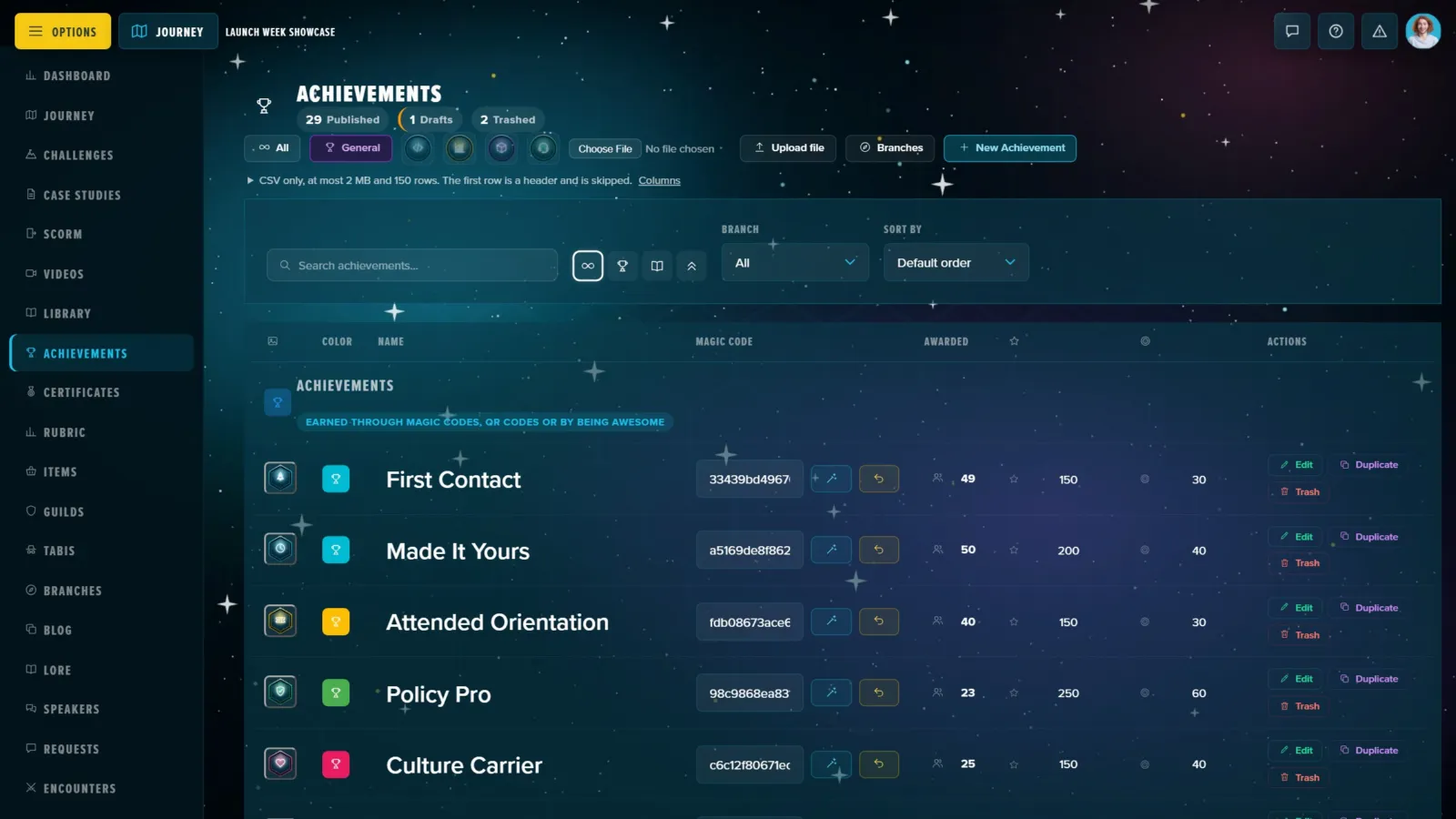
Counts across the top (published, draft, trash), buttons for each path group (All, General, one per branch), search, a filter and a sort; Upload file, Branches and New Achievement in the header. The table groups badges, paths and ranks; each row has its colour, name, magic code (Generate one, or take it back), how many times it was awarded and its XP and BLOO (or your Adventure's names for them), edited in place, with Edit, Duplicate and Trash. Below: a summary with Reorder Achievements, the drafts, the trash and Magic Links, the shareable link for every achievement that has a code. See Achievements, Paths & Ranks.
Certificates
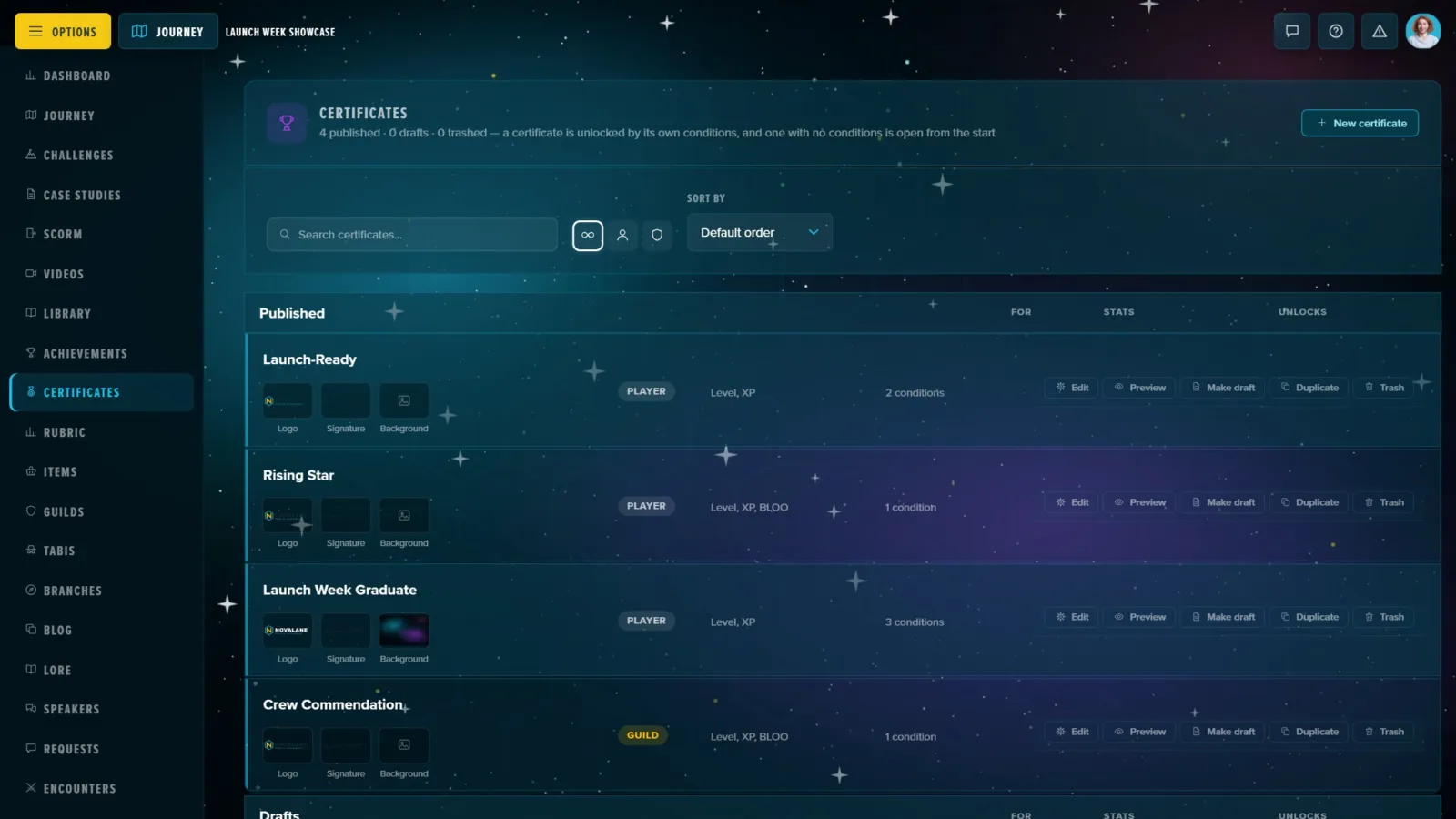
One table per status. Each certificate shows its three pictures (each opens the media library), its name (edited in place), who it's for, its stats and what unlocks it, with Edit, Make draft or Publish, Duplicate and Trash; the trash has Restore and Delete forever. A section with nothing in it says "Nothing here". Deleting a certificate for good removes the rules that gated it too. See Authoring Certificates.
Rubric
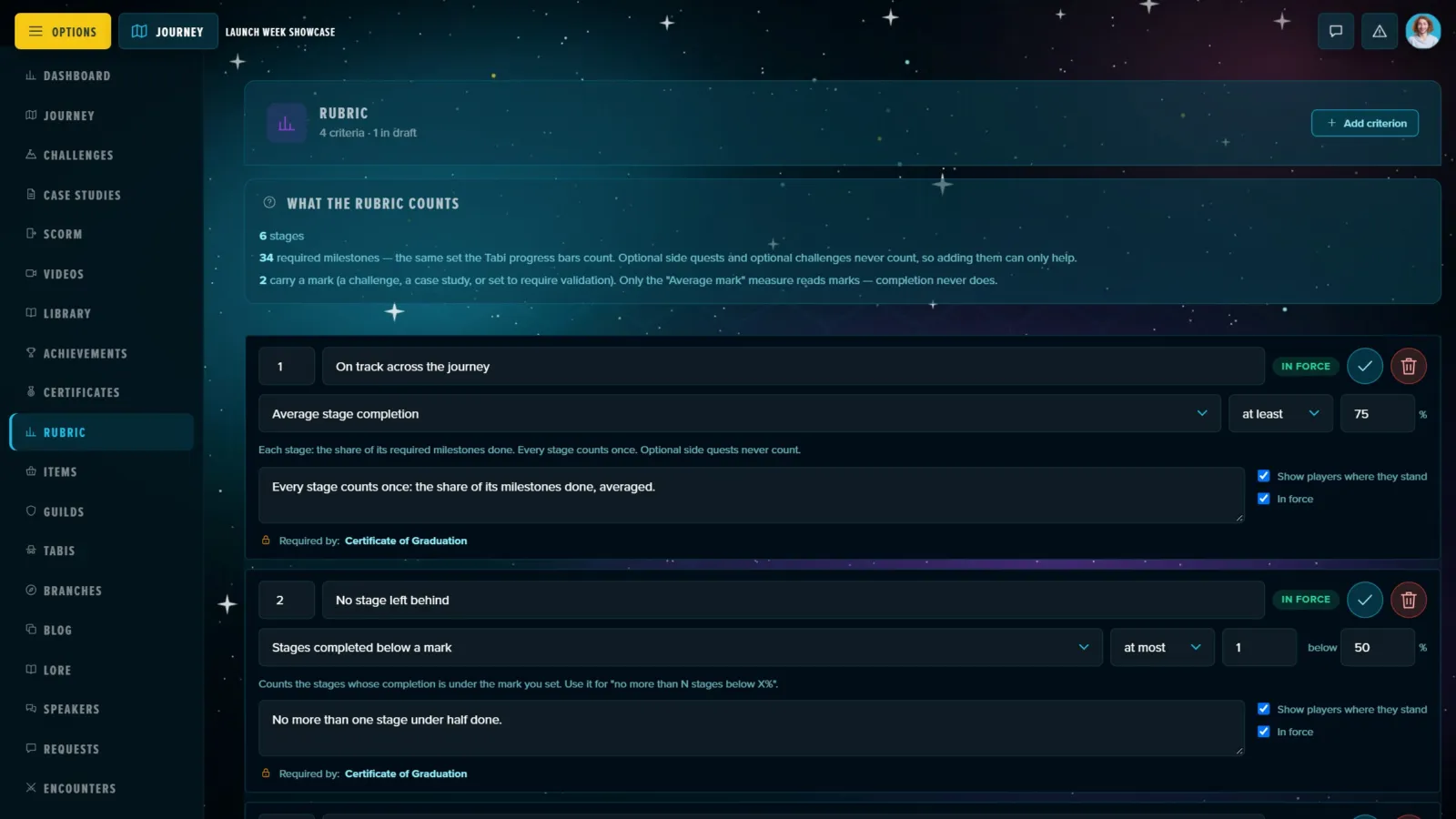
Shown when Graduation Criteria are switched on. Each criterion is a measure (average stage completion, the lowest stage's completion, stages completed below a mark, one named stage's completion, completion across all milestones, or the average mark on marked milestones), a comparison and a number, with Show players where they stand and its status, all saved in place. Add criterion adds one. What the criteria decide lists each certificate and the criteria it requires: criteria measure, certificates award.
Items
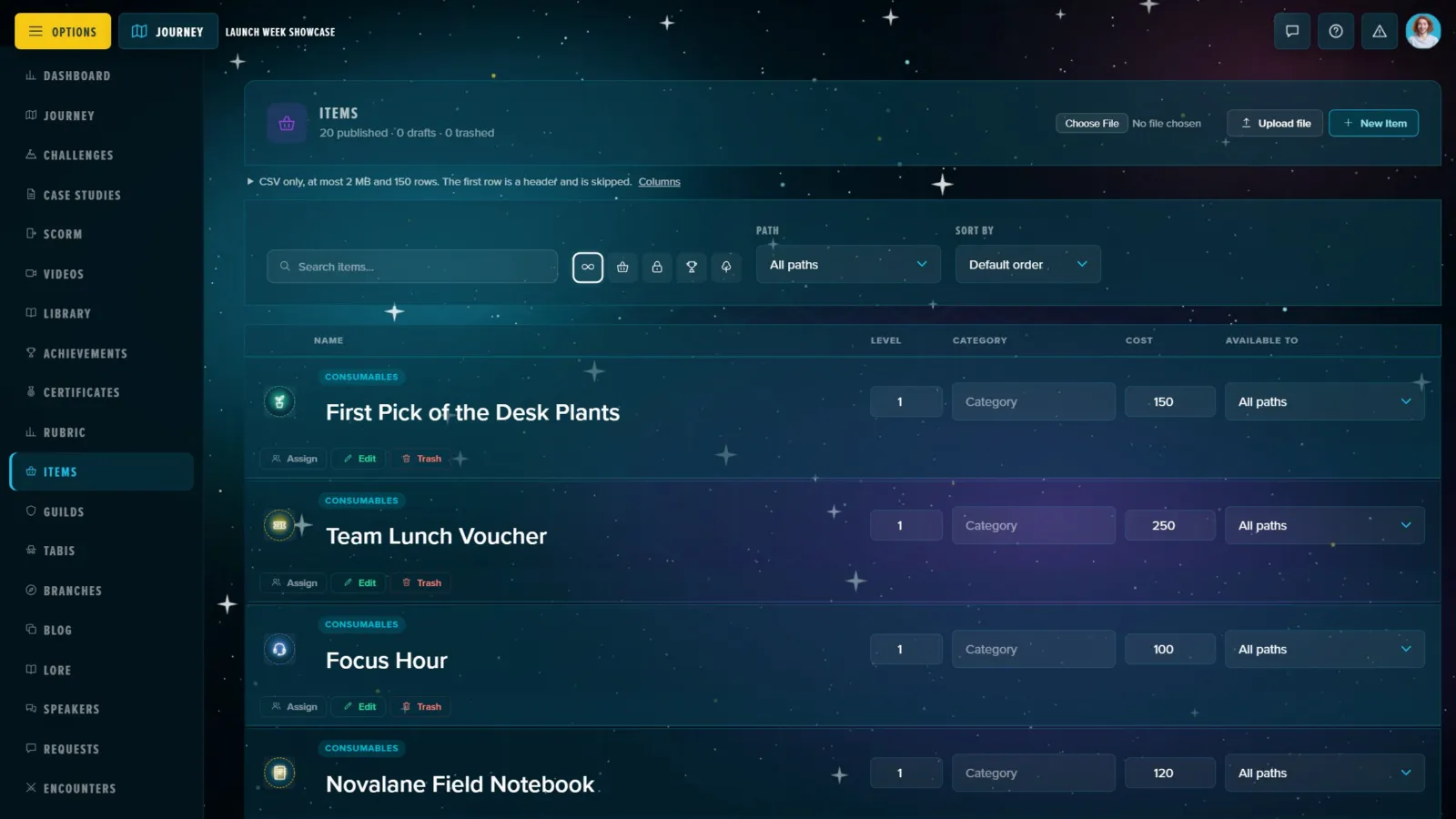
Every item grouped by type (consumables, keys, rewards, and Tabi pieces with the Tabi they belong to). Each row's level, category, cost and who can buy it (all paths or one) change in place, with Assign (give it to a player), Edit and Trash. The header counts published, drafts and trashed, and holds Upload file and New Item; the type buttons, a path filter, the sort and the search narrow the list. See The Item Shop.
Community
Guilds
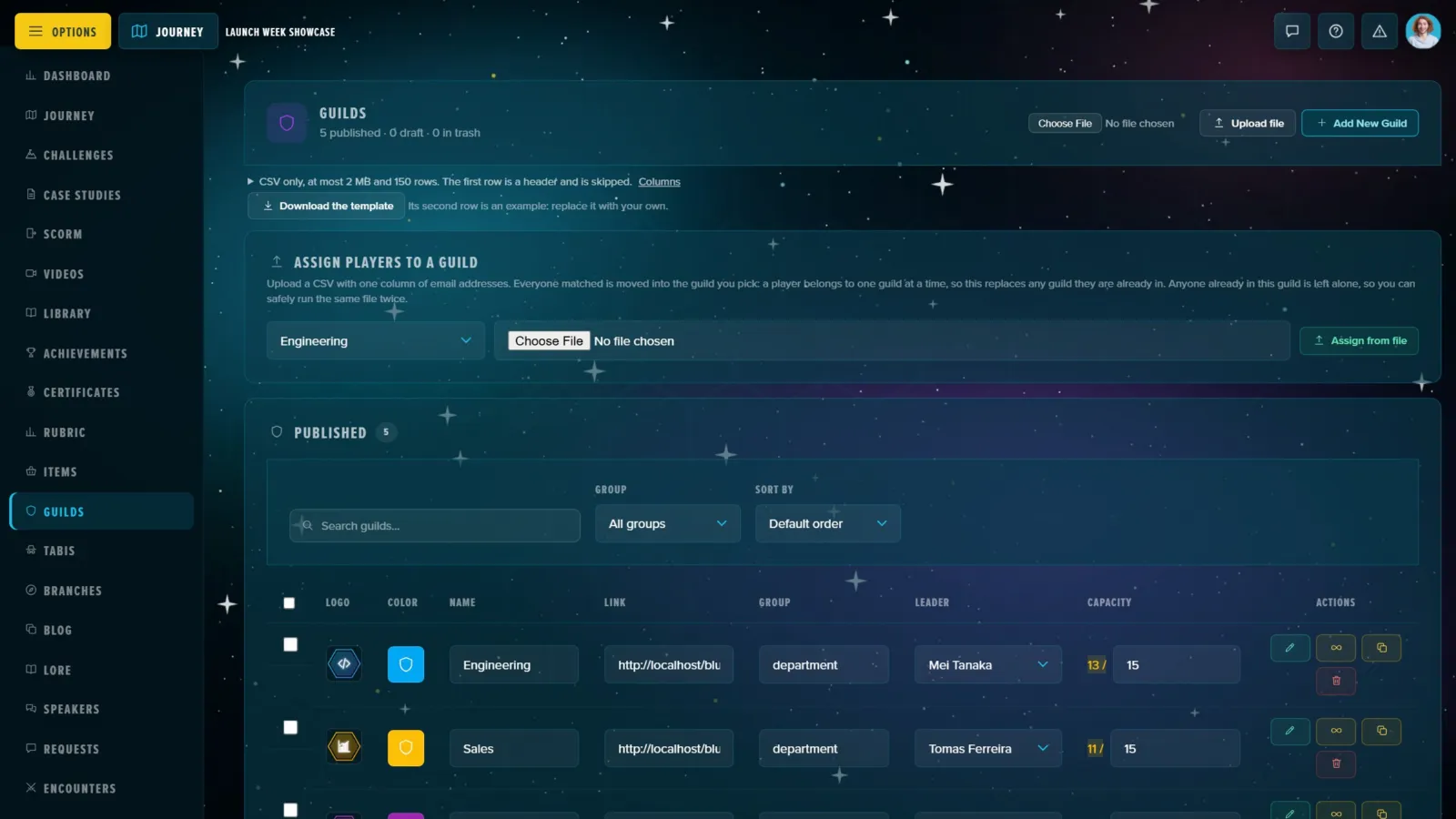
Assign players to a guild moves everyone in a CSV file of email addresses into the guild you pick. Below, the published guilds, each edited in place (logo, colour, name, group, leader, capacity) with its invite link; drafts and trash follow. See Guilds — Designing Team Play.
Tabis
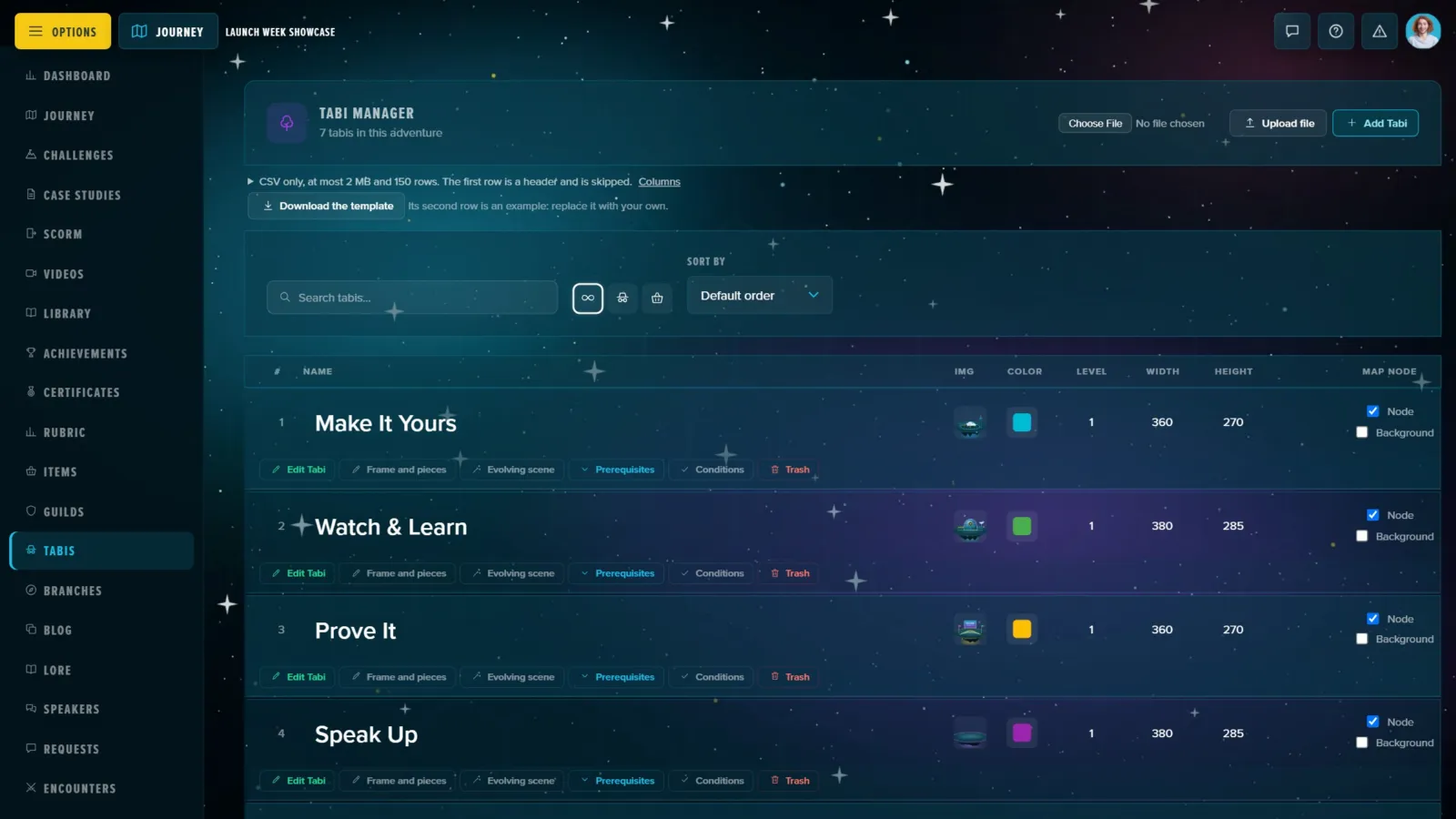
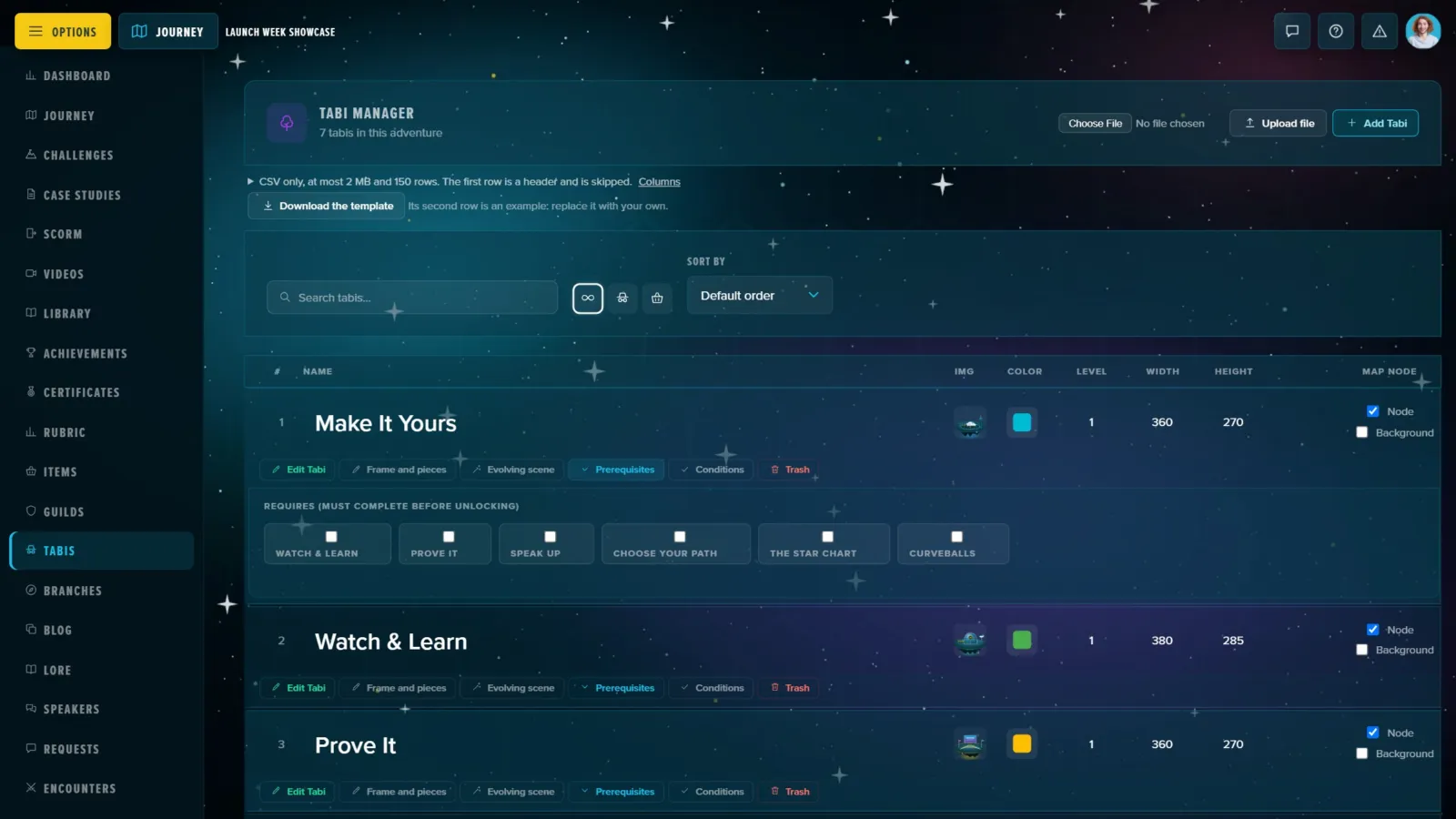
The Tabi Manager: every Tabi numbered in order, with its journey picture and map node, colour, level and rewards, and links to edit it, its pieces and places, its scene, its Prerequisites and its Conditions; Add Tabi and Upload file in the header. Prerequisites opens under the row: pick the other Tabis that must be finished before this one opens. See The Tabi Editor.
Branches
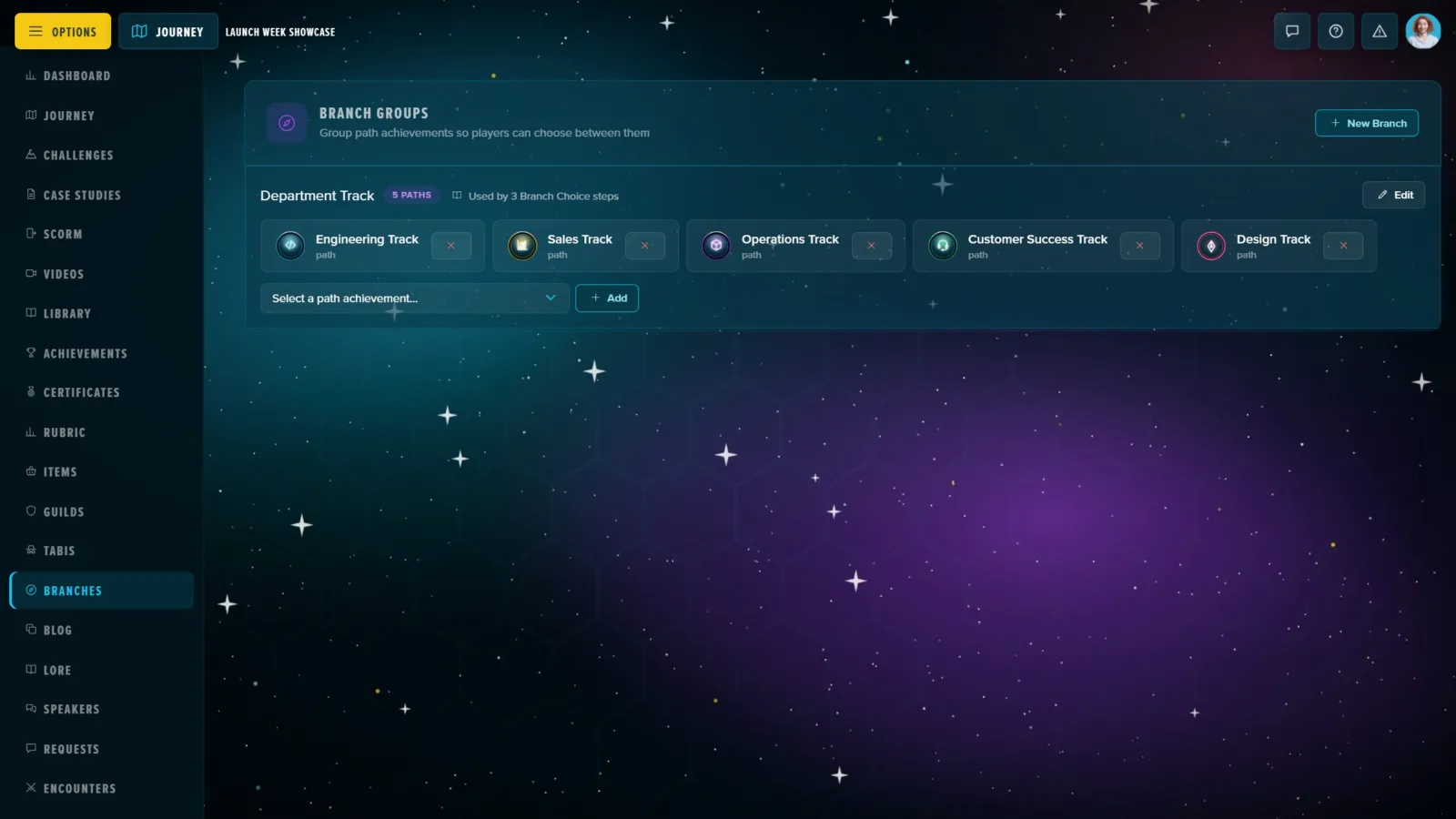
A branch groups path achievements so a player chooses one of them: a Branch Choice step offers the group, and a second path from the same branch is refused. Each branch lists its paths; pick another and Add puts it in, Edit renames the branch, New Branch makes a group. See Branching & Prerequisites.
Speakers
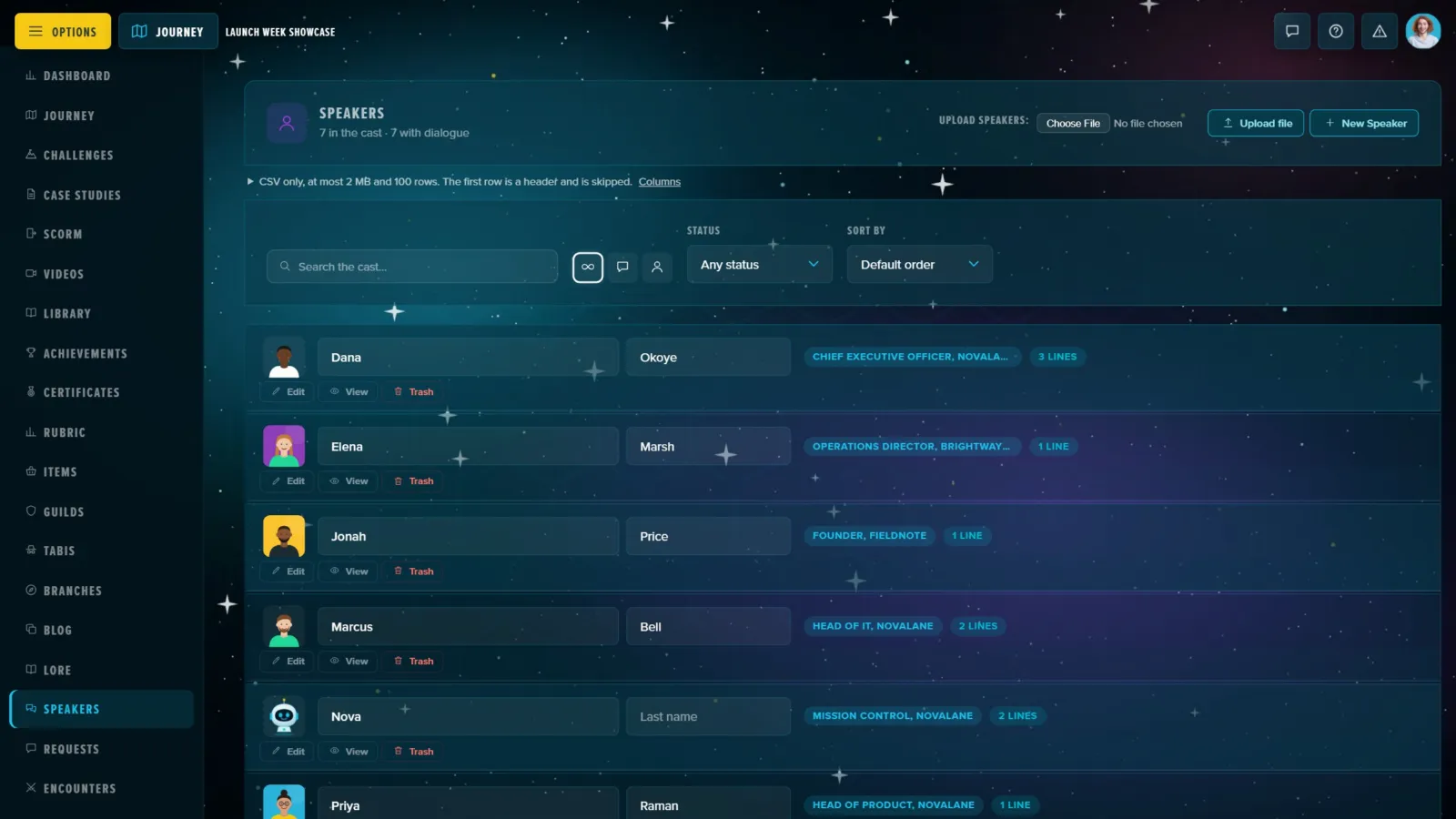
The cast: each speaker's portrait, first and last name (edited in place) and how many dialogue lines they speak. A dialogue step names its speaker, so a name fixed here changes every line. Upload file and New Speaker are in the header. Sessions have no tab of their own: they're managed on the Schedule page. See Speakers & the Dialogue Cast.
Requests
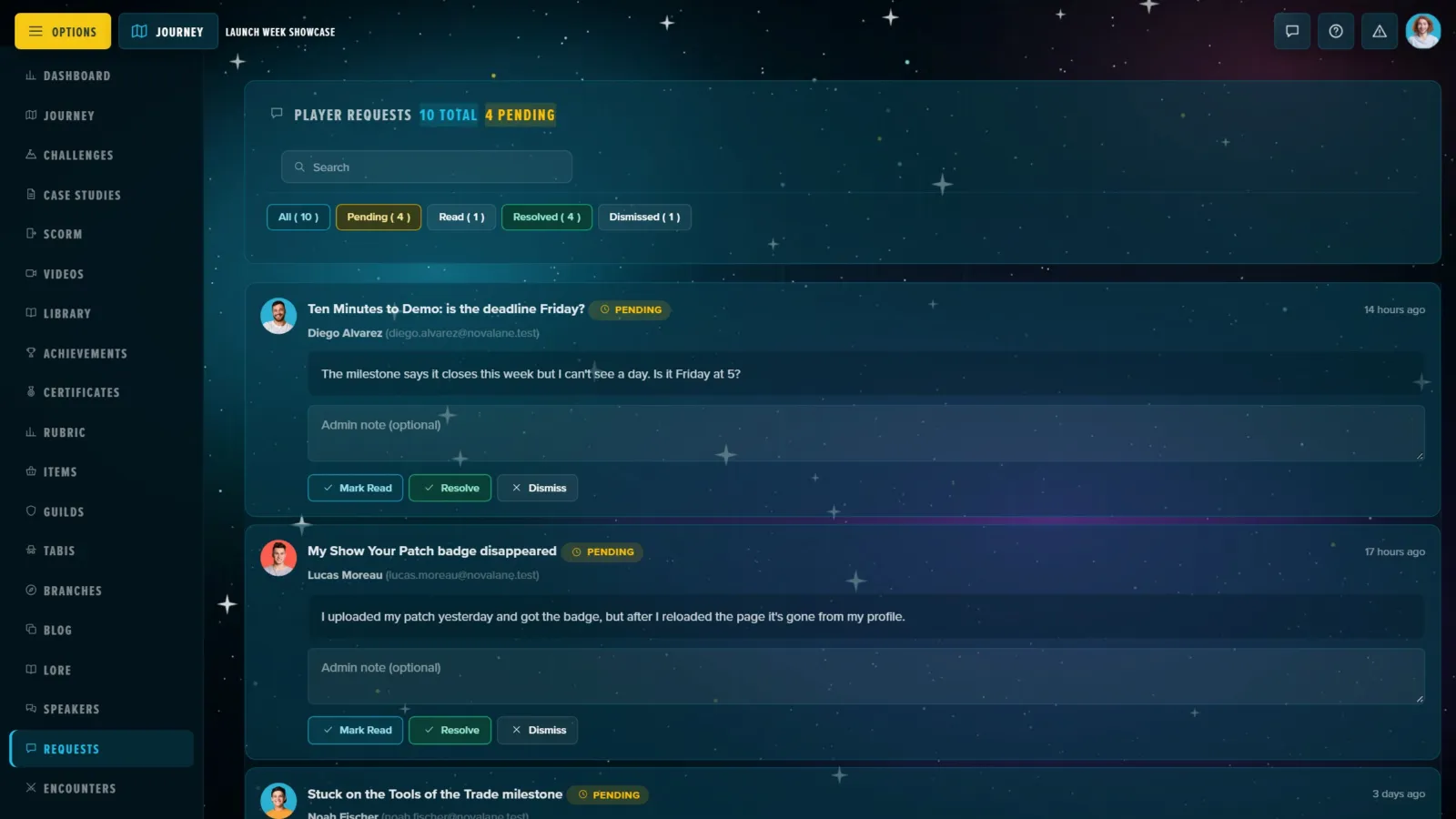
What players sent from the feedback form: the total and how many are pending, a search, and filters by status (All, Pending, Read, Resolved, Dismissed). Each card holds the request and the player, a note box, and Mark Read, Resolve or Dismiss (or Reopen once it's closed). See Managing Player Support Requests.
Story and Content
Encounters and Consequences
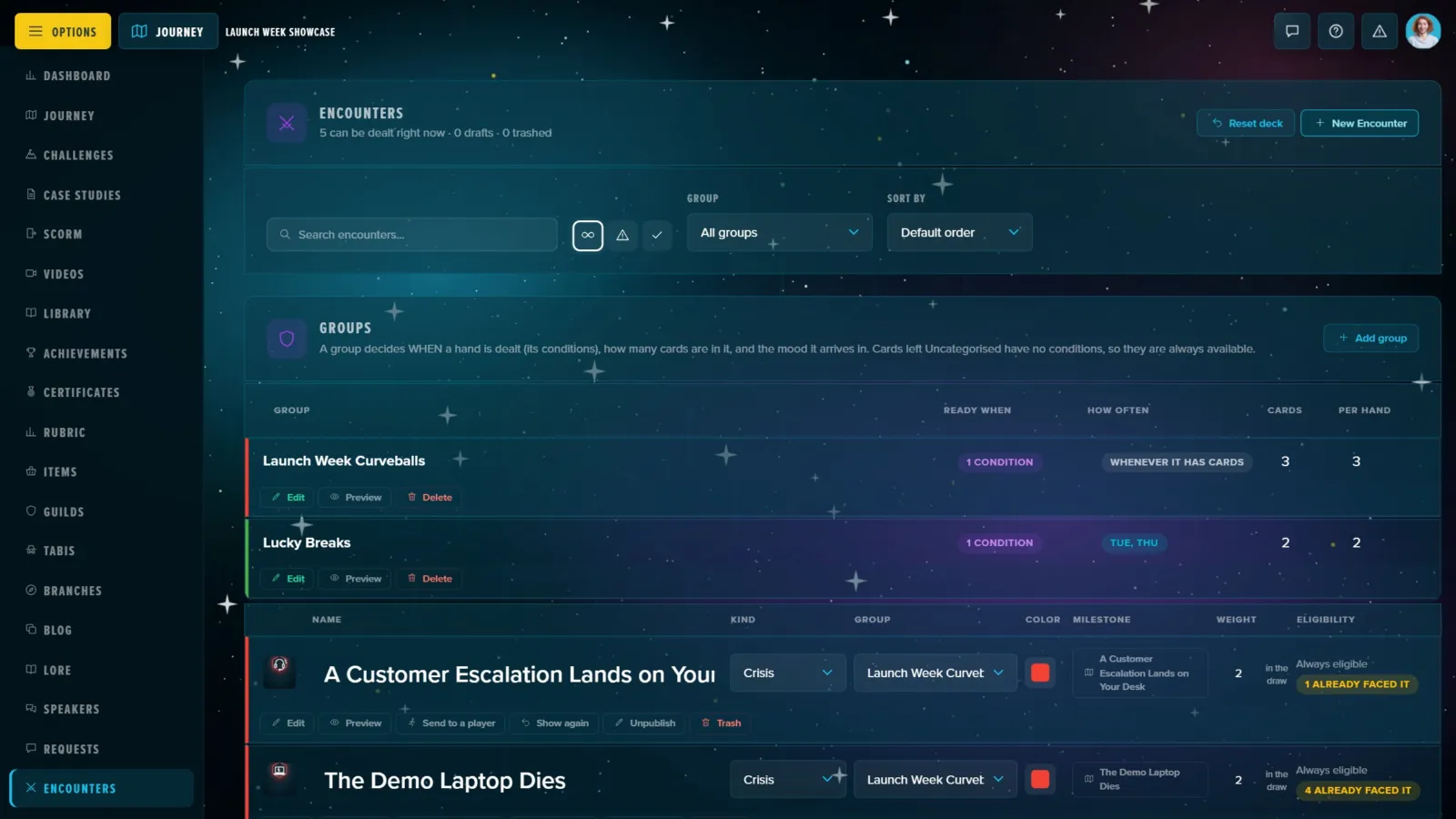
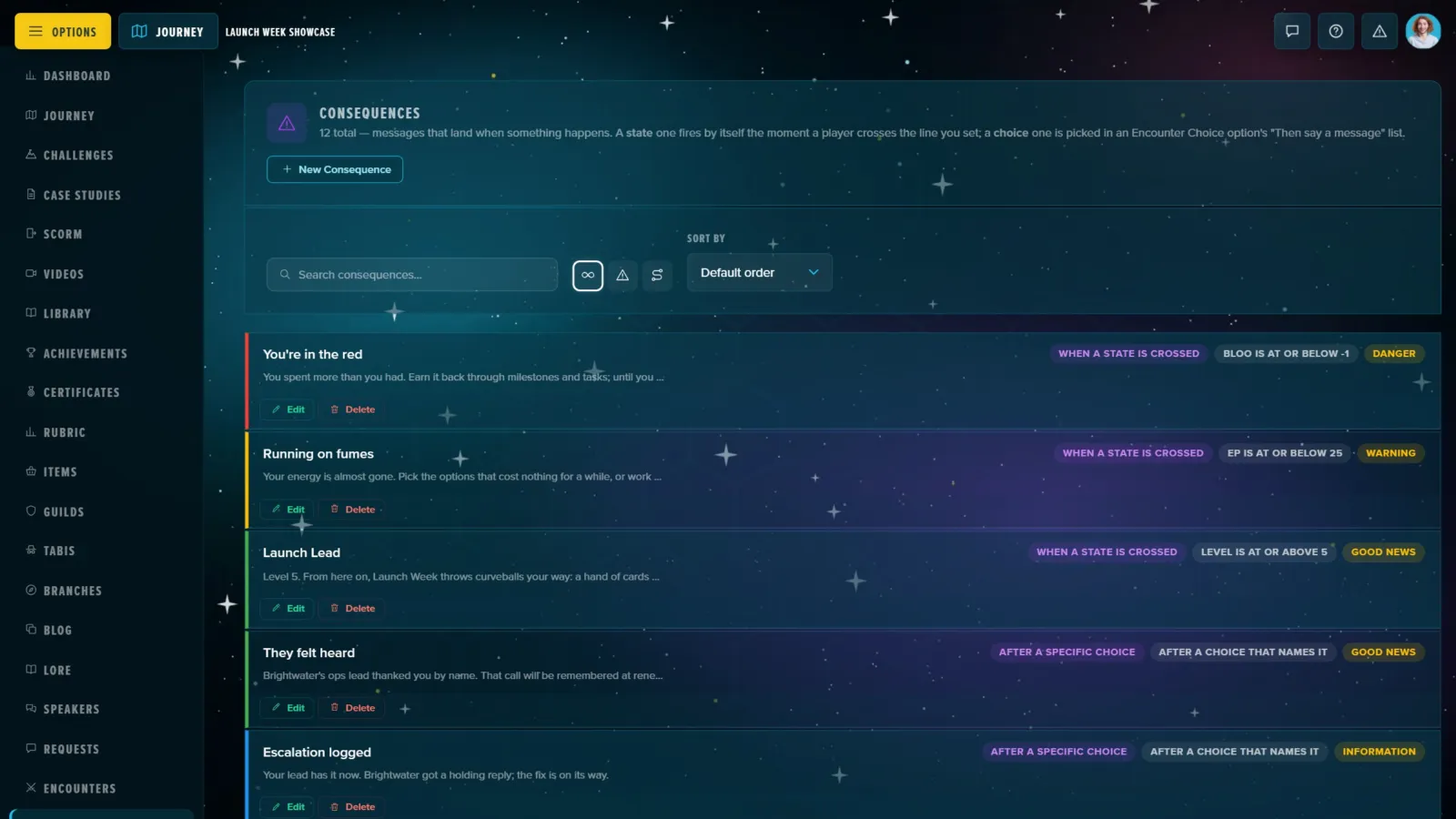
Encounters holds the deck of cards dealt to players: Reset deck and New Encounter in the header, the groups with their rules (Edit, Preview, Delete, Add group), then every encounter with its kind (crisis or opportunity), group, colour, milestone, weight, times faced and availability, edited in place, with Edit, Preview, Send to a player, Show again (once it's been dealt), Unpublish and Trash. Consequences lists what a choice does to a player, each with its effects as badges, with Edit, Delete and New Consequence. See Random Encounters and Consequences.
Blog, Lore and the Library
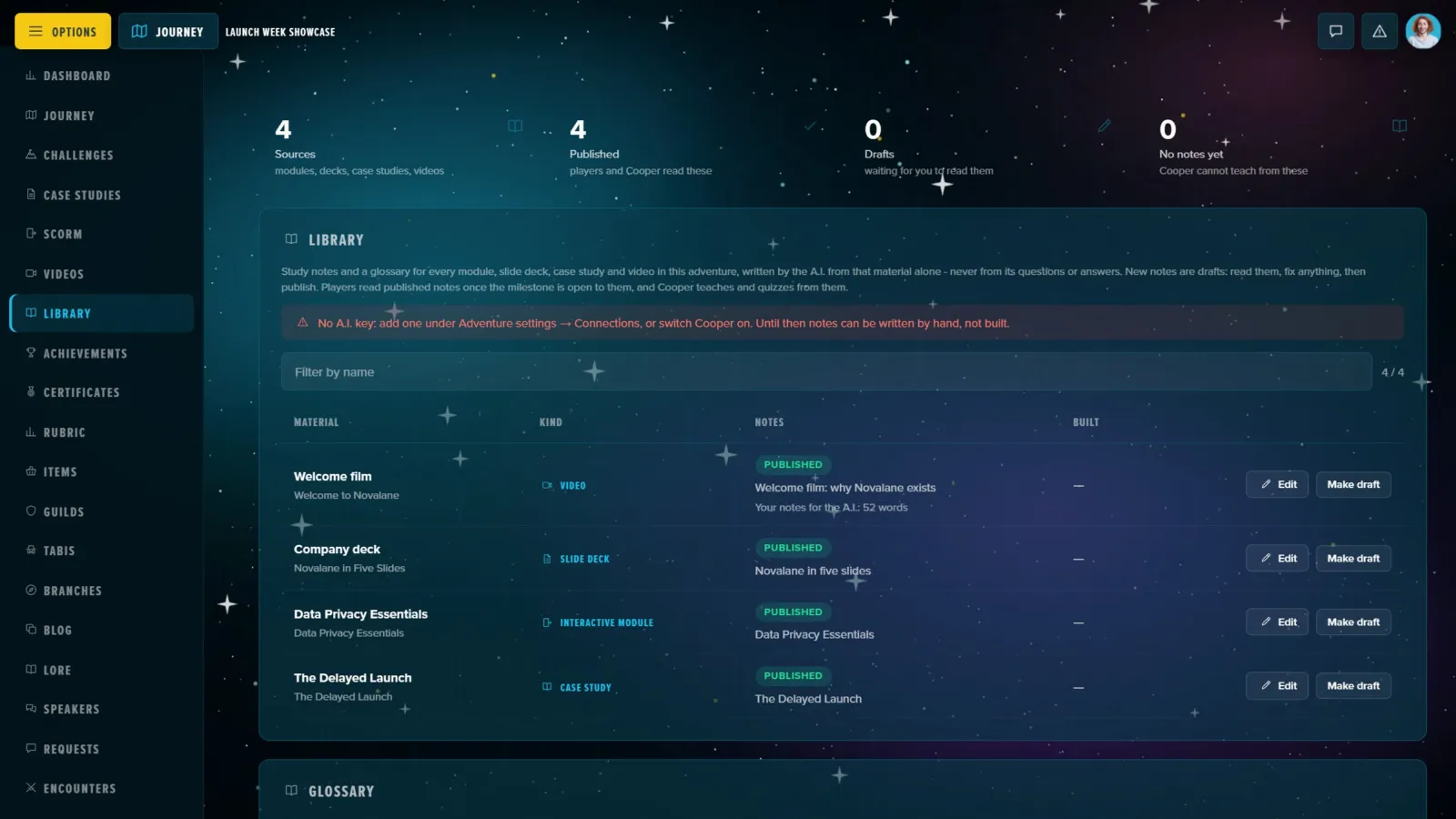
Blog lists the posts and Lore the resources, each edited in place (picture, title, style or path, start date) with Edit, Trash and a reorder; see Posts & Resources. The Library lists every step whose material can become study notes, with where its notes stand; see Authoring the Library.
The Garden and Profiles
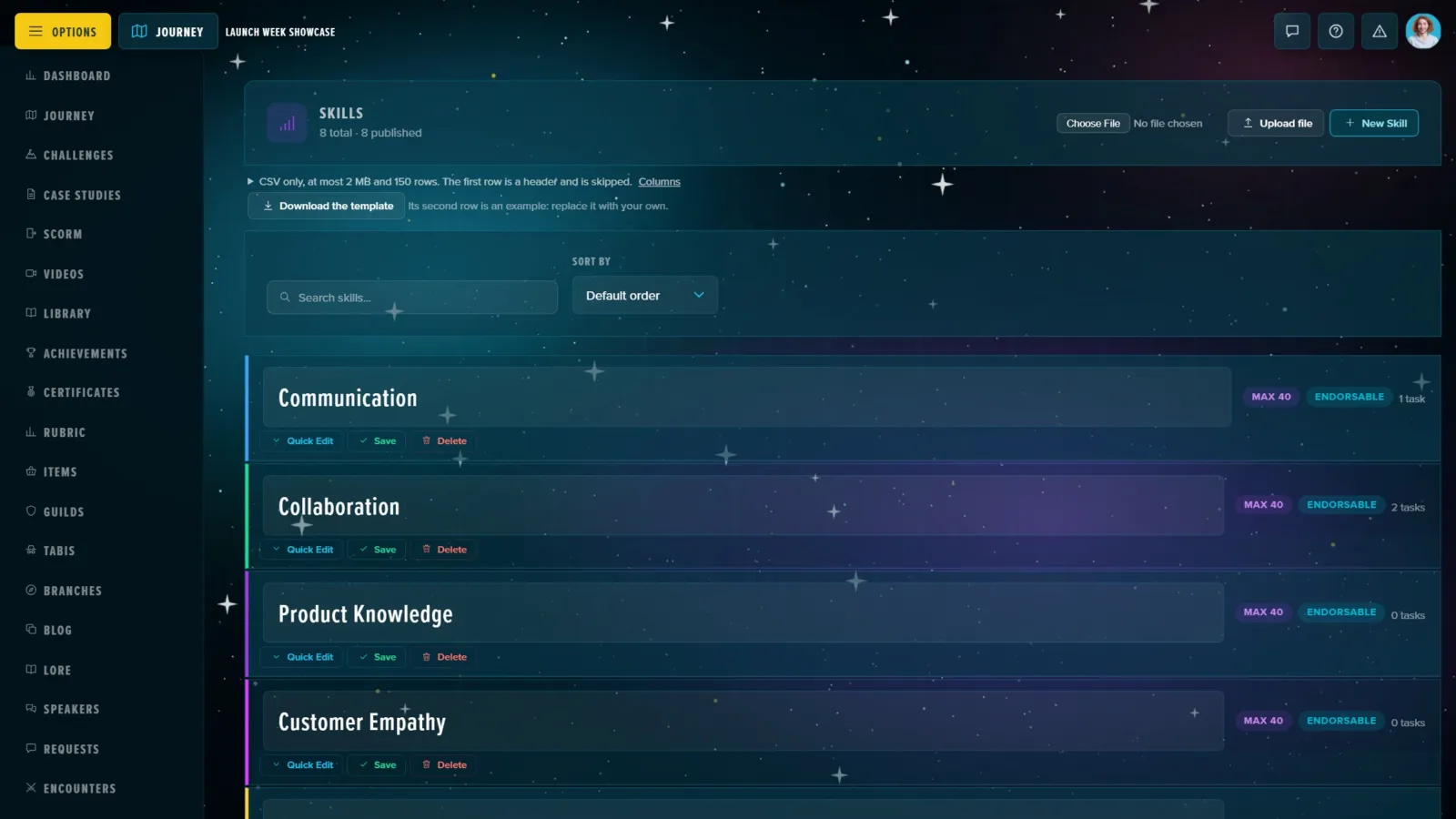
- Skills: the skills Blooms grow, each with how many tasks use it; Quick Edit opens its name, colour, icon and description in place. New Skill and Upload file in the header. See Setting Up Your Skills Catalog.
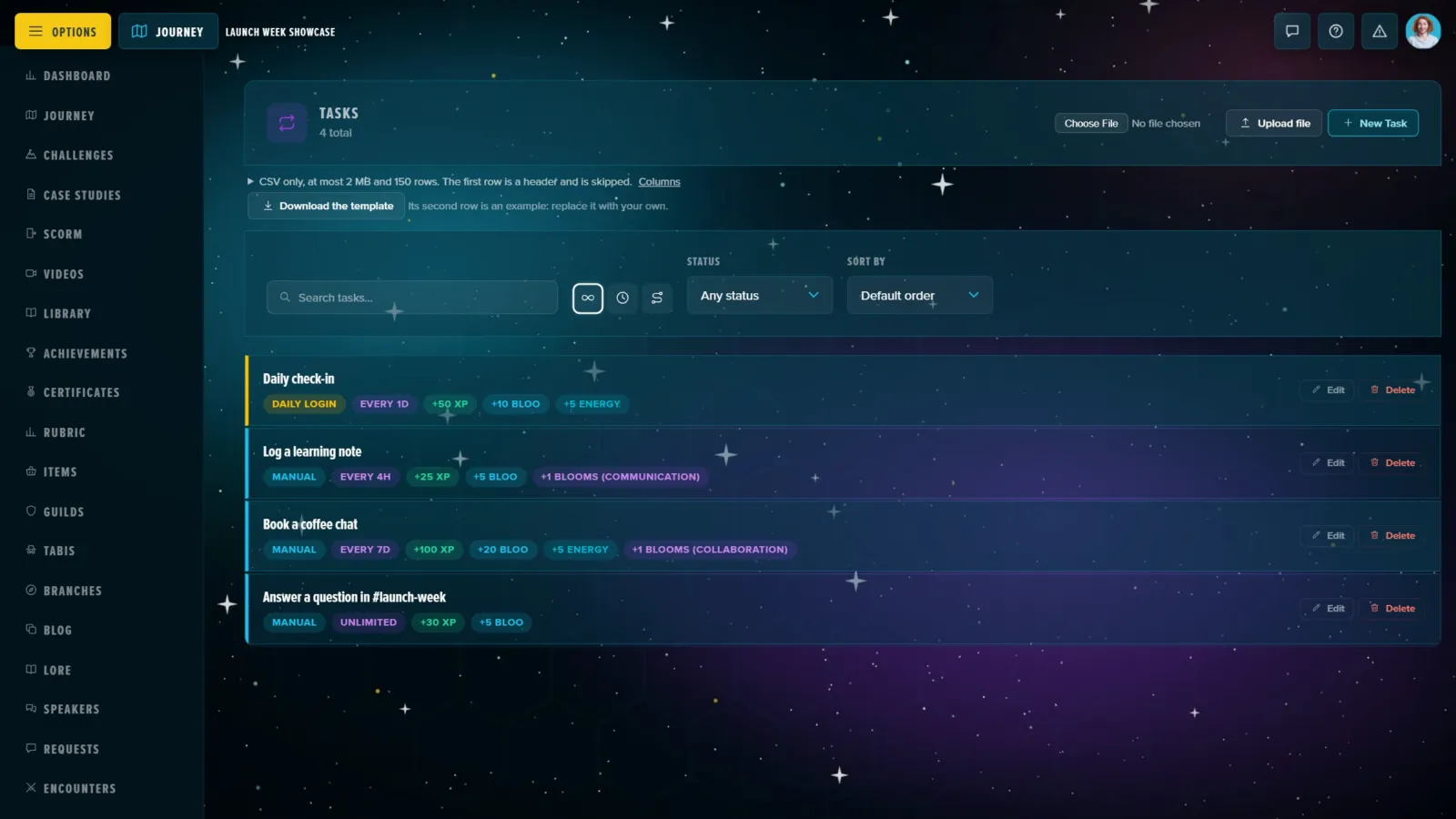
- Tasks: the recurring tasks with their badges (how often, XP, BLOO, Blooms and skill); Edit opens a task in a drawer with all its settings (basics, trigger, recurrence, rewards). New Task and Upload file in the header. See Garden Tasks.
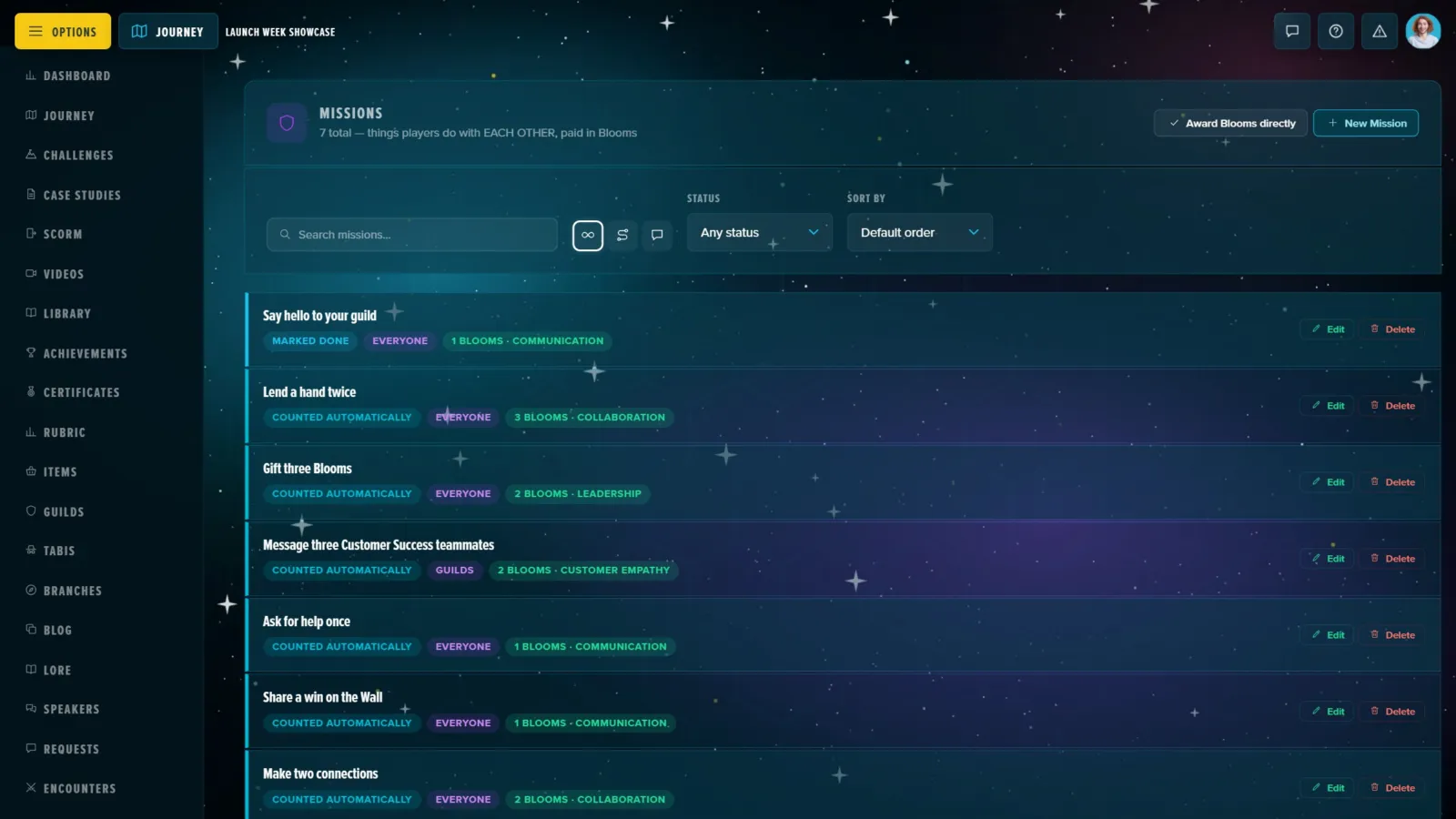
- Missions: each mission with what it counts, its target and the Blooms it pays; Edit and Delete per mission, and Award Blooms directly and New Mission in the header. See Garden Missions.
- Profiles (with Profile Tests on): the scales a Profile Test scores against, with their traits and how many readings were taken. Add the official HEXAD adds the standard player-type profile; New Profile makes your own. See Profile Tests.
Row Actions: What Asks First
Not every tab confirms the same way, so it's worth knowing which buttons act straight away:
- At the first click: Trash, Publish, Lock, Restore and Delete Forever on the Journey, Items and Encounters tabs. A message in the corner says what happened.
- Asking first, in the button: on Guilds, Blog, Lore, Tabis and Branches the first click turns the button into its question (Trash?, Delete forever?), and a second click within a few seconds runs it.
- Asking on a card: Achievements and Certificates.
- Asking with the browser's own confirm: Skills, Tasks, Missions, Profiles and Consequences.
Delete forever means for good. The item leaves every list and every player page, and nothing in the app brings it back. A guild deleted for good releases its members; a certificate takes its rules with it. When in doubt, Trash: the trash can always be restored.
On a Phone
Manage Content works on a phone: the tabs become a strip across the top to swipe, and the tiles and filters stack. Requests is the tab you're most likely to answer from on the go.