Building forty milestones, sixty questions or a whole catalogue of skills one form at a time is slow. Most managers in Manage Content take a CSV upload instead: one row per thing, added in one go. The same idea runs the other way too: rosters, grades and reports come out as CSV files you can open in any spreadsheet. This page lists every upload and every export, and the rules they share.
Where You Can Upload
- Achievements: Manage Content → Achievements, in the header.
- Items: Manage Content → Items, in the header.
- Milestones: Manage Content → Journey, Bulk Upload in the header.
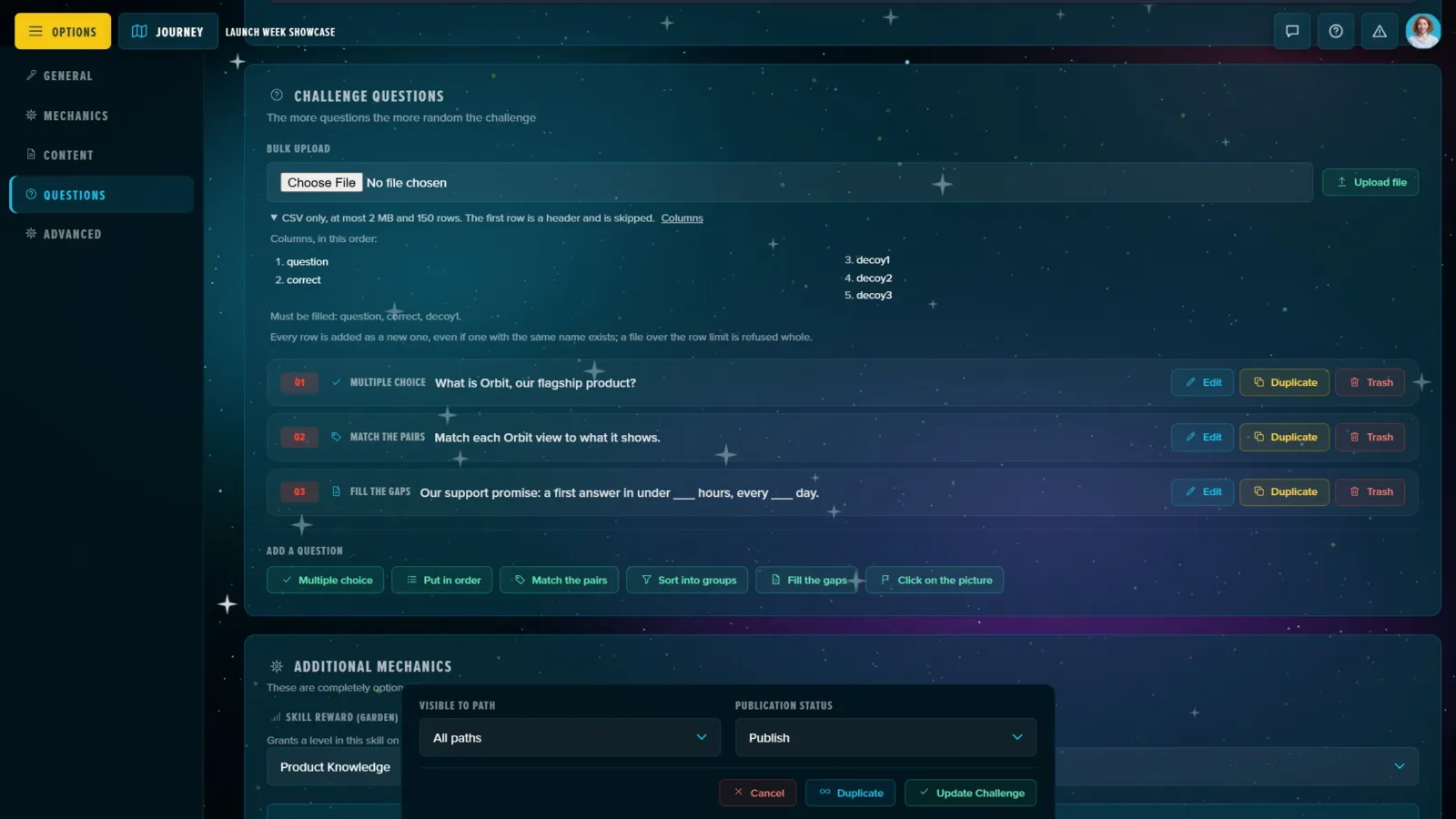
- Challenge questions: in a challenge's editor, under Questions, once the challenge is saved: a question, its correct answer and up to three decoys per row.
- Speakers: Manage Content → Speakers.
- Schedule sessions: on the Schedule page itself, for staff who can edit.
- Guilds, Tabis, Skills and Tasks: beside each tab's add button.
- Posts and Resources: at the top of each tab's published list.
Only those who can edit the Adventure see the uploads; NPCs don't. Content lands where it belongs: milestones, achievements, items, Tabis, skills, speakers, posts and resources on the template, so every cohort gets them; guilds, tasks and schedule sessions on the Adventure you're in, as a cohort keeps its own.
Before You Pick a File
Under the header, each upload says exactly what it takes, before you choose anything:
- The limits: CSV only, at most 2 MB and 150 rows (100 for speakers and sessions). The first row is a header and is skipped.
- The columns, in order, and what each takes: a number and its default when blank, a date like
2026-12-31 14:30, a colour name likeblueor a code like#1c8ca6, a web address, the id of something in this Adventure. The columns for XP, BLOO and EP carry your Adventure's own names for them. - What must be filled, for example a milestone's title, or an achievement's name and badge.
- Download the template (guilds, Tabis, skills, tasks, posts and resources): the columns as a header row and one example row to replace with your own.
A blank cell takes the same default the editor would give it. Choices the editor offers from a list (a status, a type, a Tabi's kind, a task's trigger, an icon) must be one of them; ids must belong to this Adventure. Tabis, posts and resources are always added published.
The Row-by-Row Report
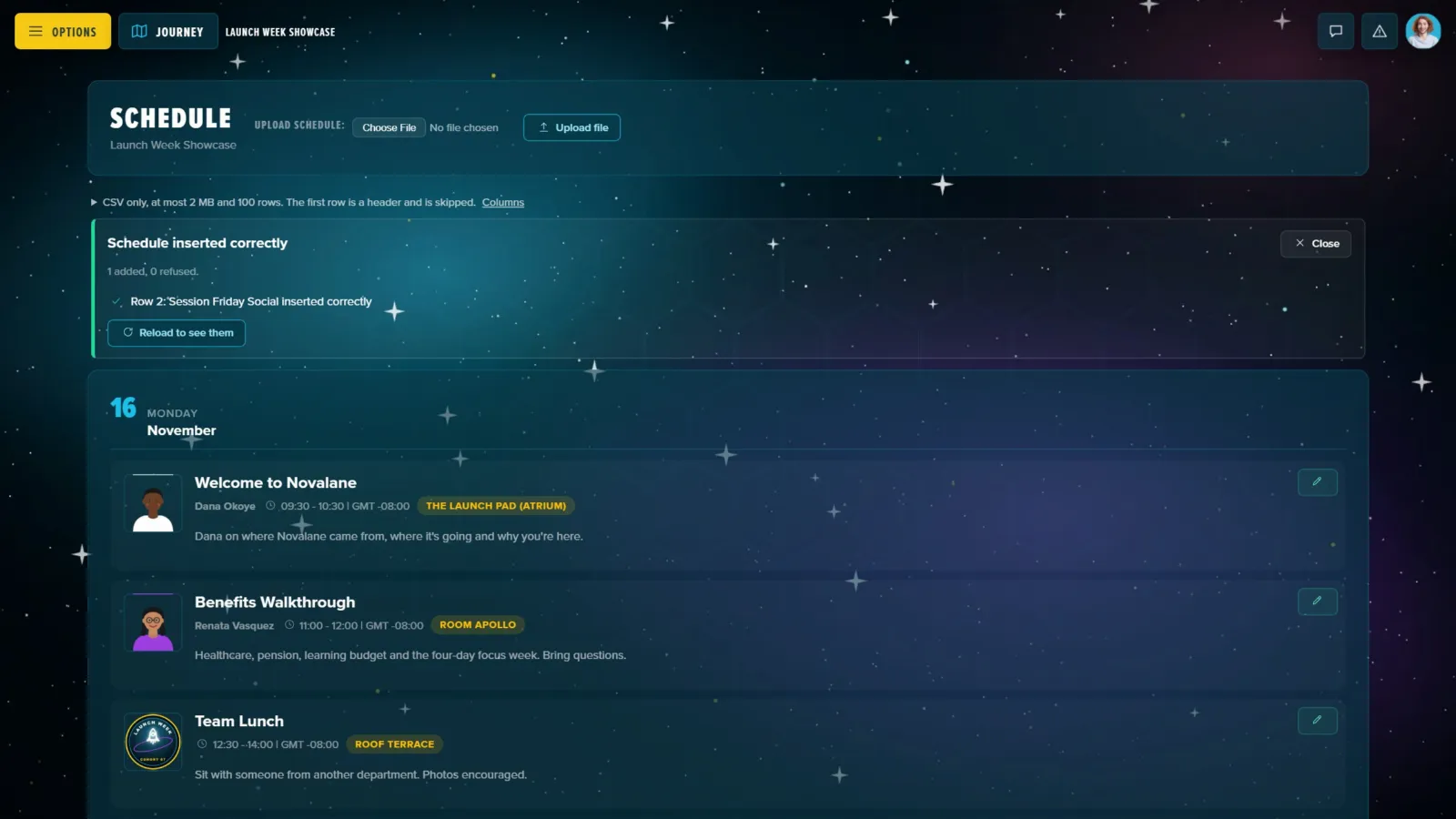
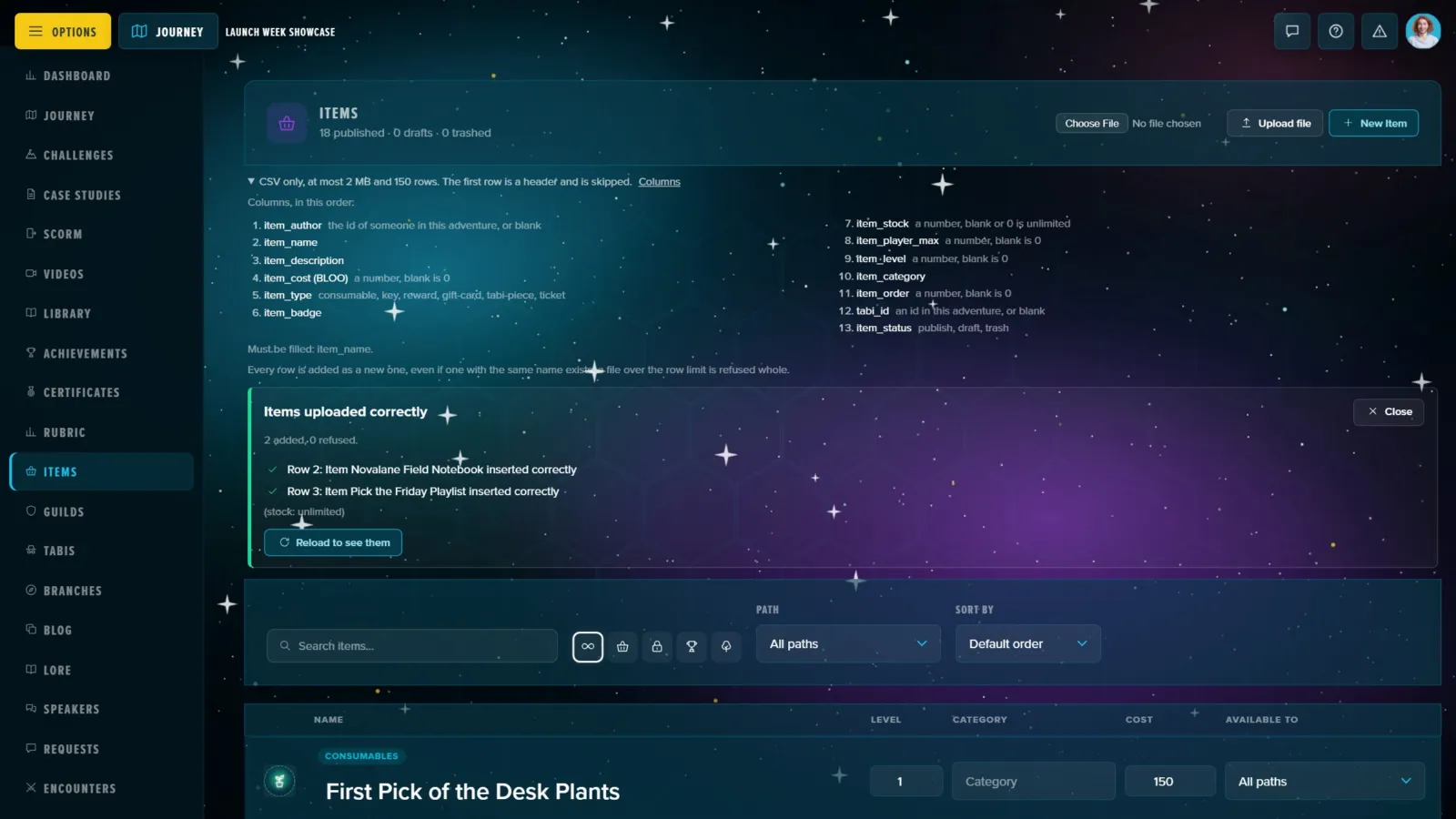
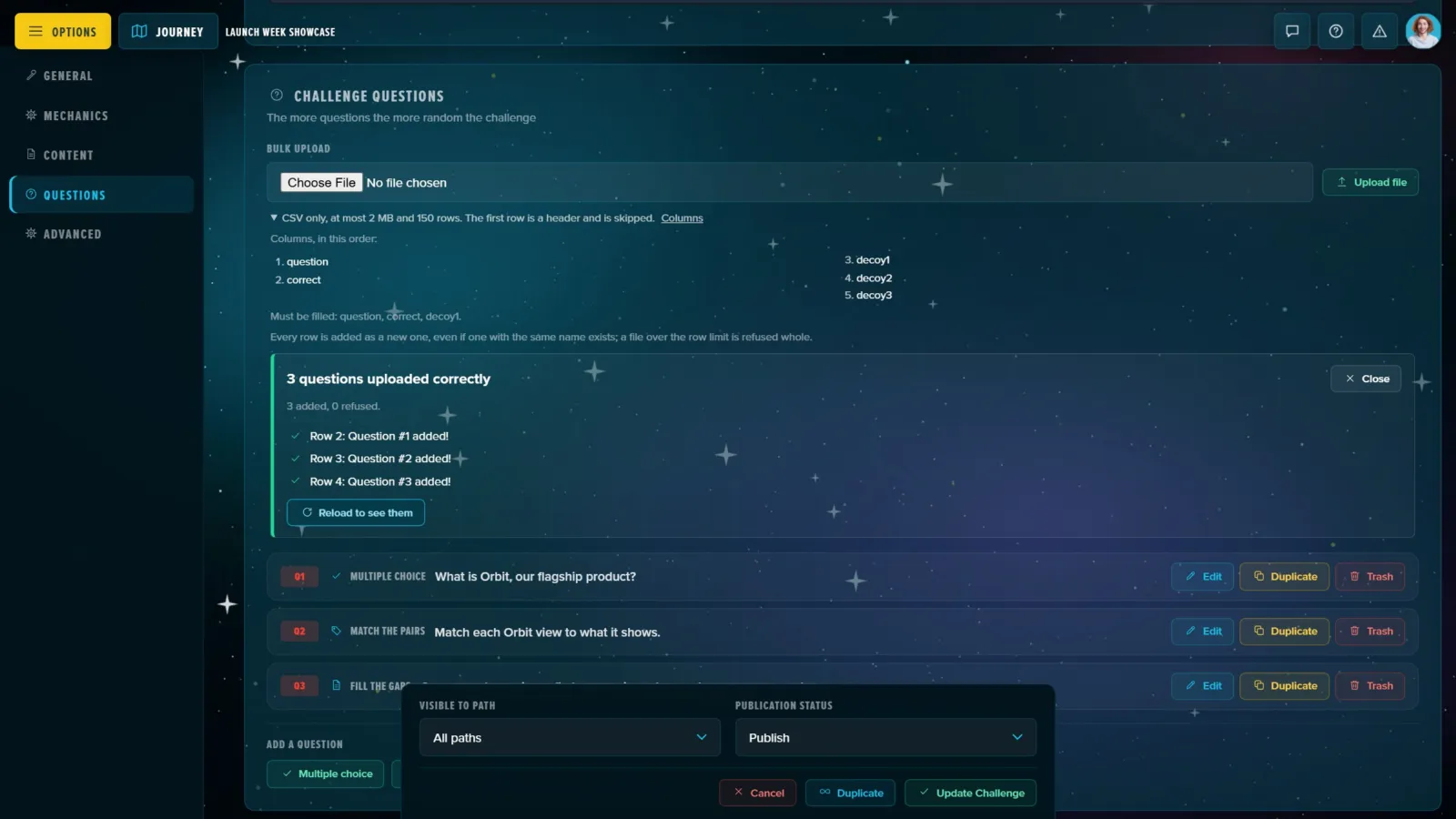
After the upload, a report stays on the page until you close it: N added, M refused, then every refused row with its spreadsheet row number and the reason (Row 12: the milestone title is empty). A row whose name was already there is added anyway, and marked so; blank lines are skipped. Reload to see them shows what was added.
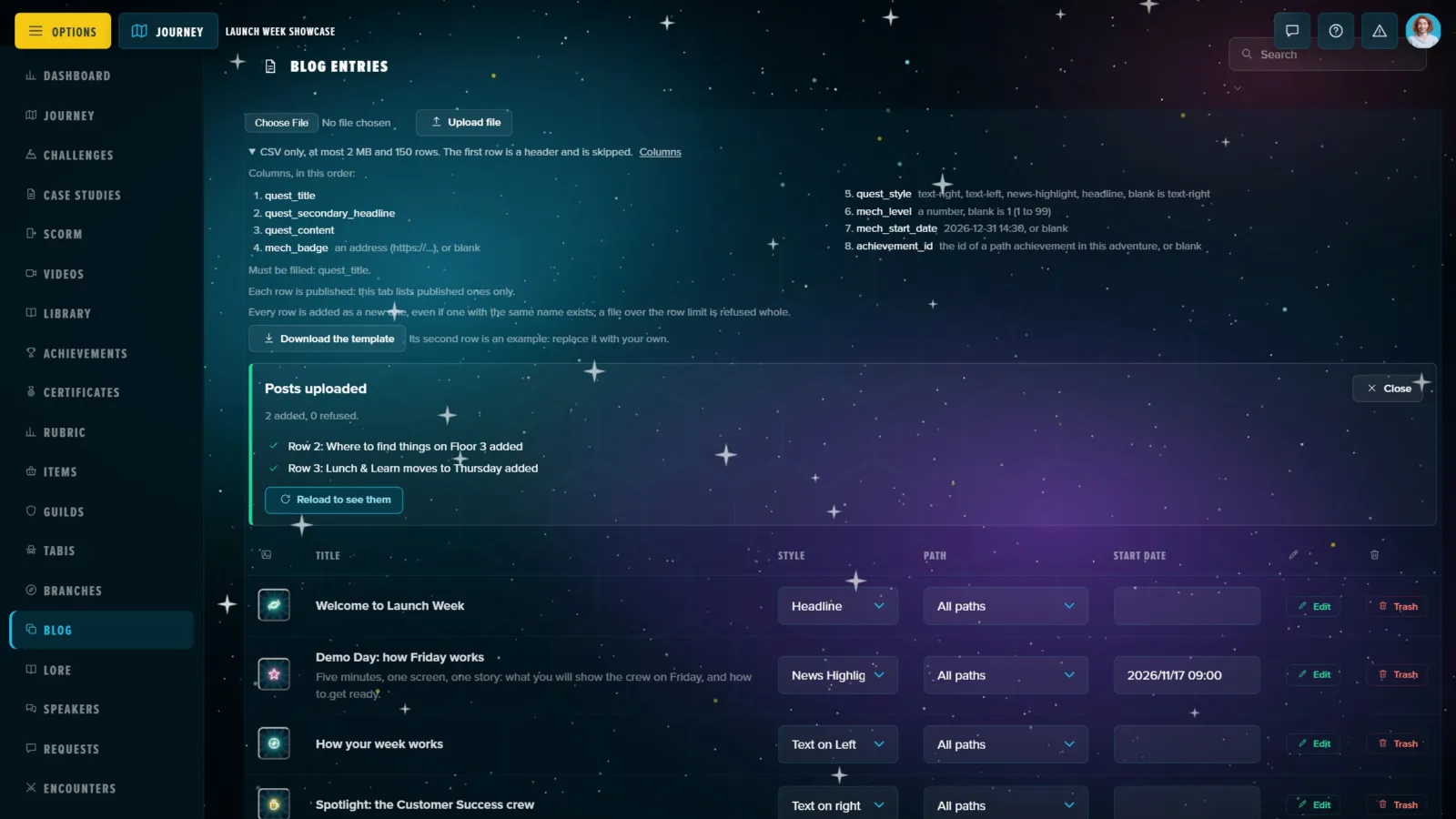
- Every row is added as a new one, even if one with the same name exists. Fix the refused rows and upload a file with only those: sending the whole file again adds the good rows twice.
- A file over the row limit is refused whole, so nothing is half-imported. Split it.
- Separators and encodings: the file must be separated by commas. A file separated by semicolons is refused with how to fix it (save it as "CSV UTF-8" in Excel). Files saved with Windows or Excel encodings are read correctly, accented names included.
- The browser checks the file first: no file, not a .csv, or over 2 MB is refused before anything is sent.
The sections below give each upload's columns, in order, one content type at a time.
Posts
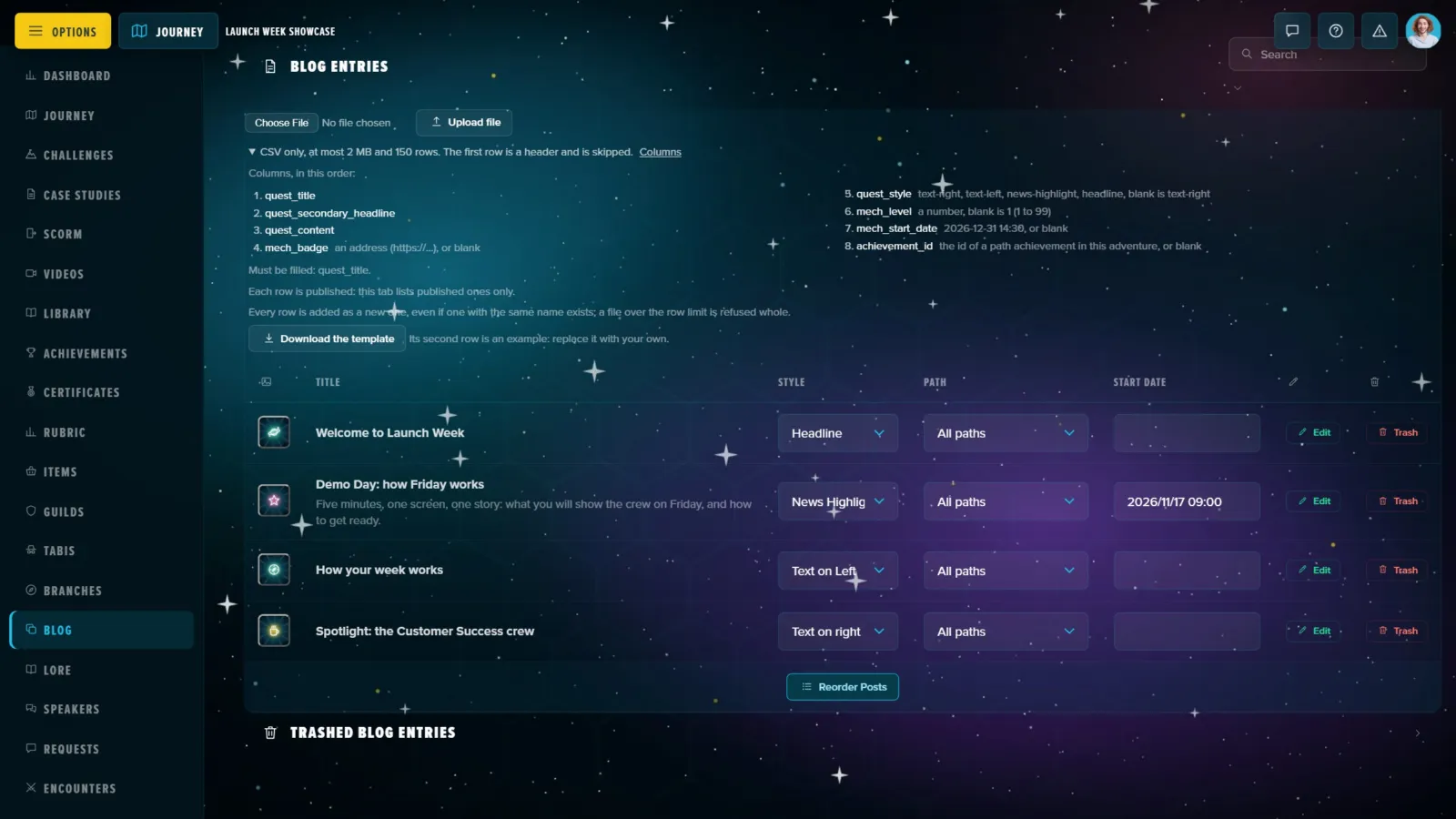
Manage Content → Blog, Upload file. Up to 150 rows. Columns: quest_title (the post headline, required, up to 255 characters), quest_secondary_headline (up to 200), quest_content, mech_badge (the picture's web address), quest_style (text-right, text-left, news-highlight or headline; text-right when blank), mech_level (1 to 99, 1 when blank), mech_start_date and achievement_id (a path). Every row is added as a published post. Download the template gives a file with an example row.
Resources
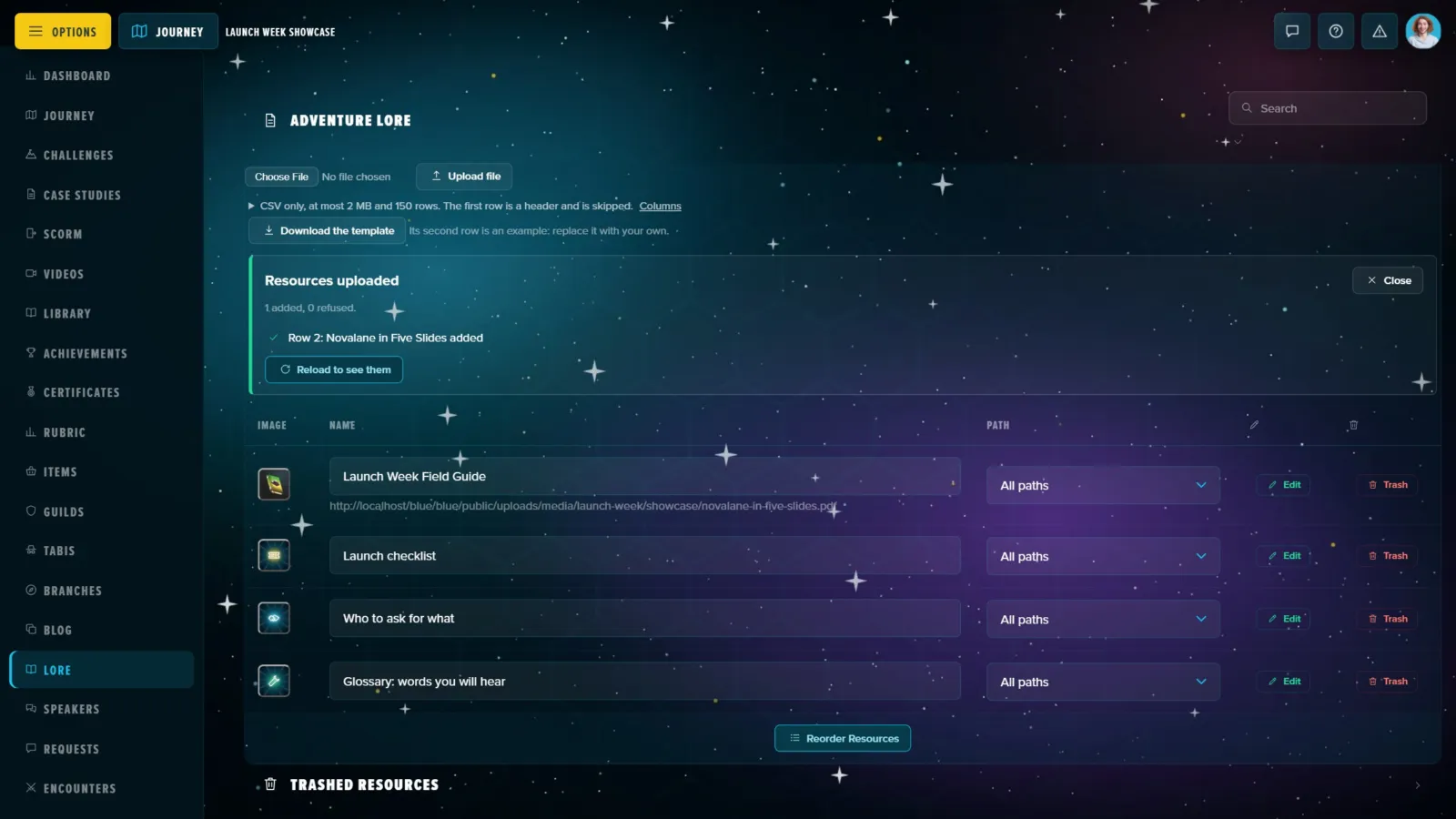
Manage Content → Lore, Upload file. Up to 150 rows. Columns: quest_title (the resource name, required), quest_style (resource or article; resource when blank), mech_level, quest_secondary_headline (the file or link, a web address), quest_content, mech_badge (a picture's web address, or a book cover by name, book-1 to book-12), quest_color (amber when blank) and achievement_id (a path). Every row is added as a published resource.
Speakers
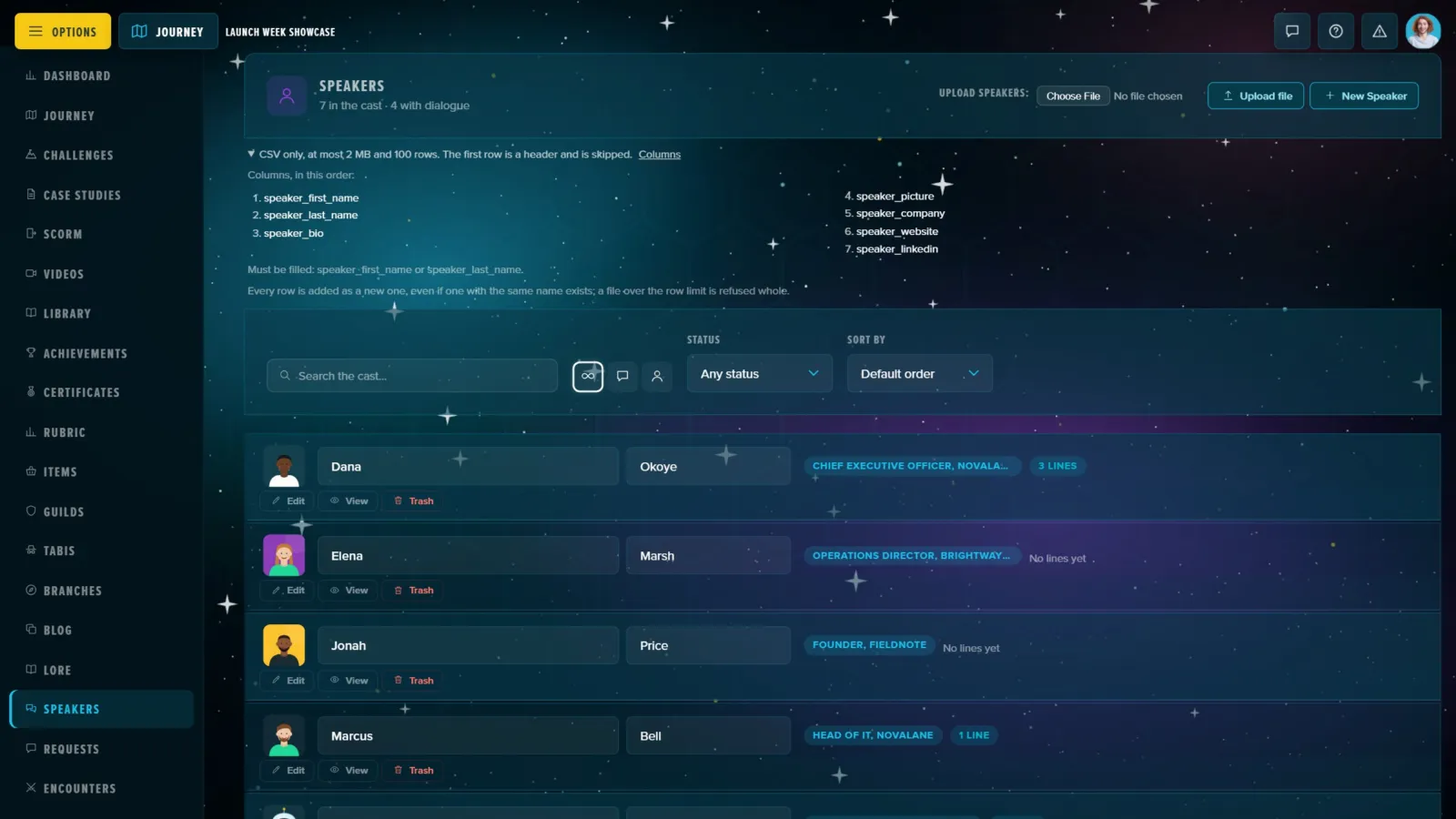
Manage Content → Speakers, Upload Speakers. Up to 100 rows. Columns: speaker_first_name, speaker_last_name, speaker_bio, speaker_picture (a picture's web address), speaker_company, speaker_website and speaker_linkedin. Each row needs a first or a last name. Speakers land on the template, so every cohort shares the cast.
Schedule Sessions
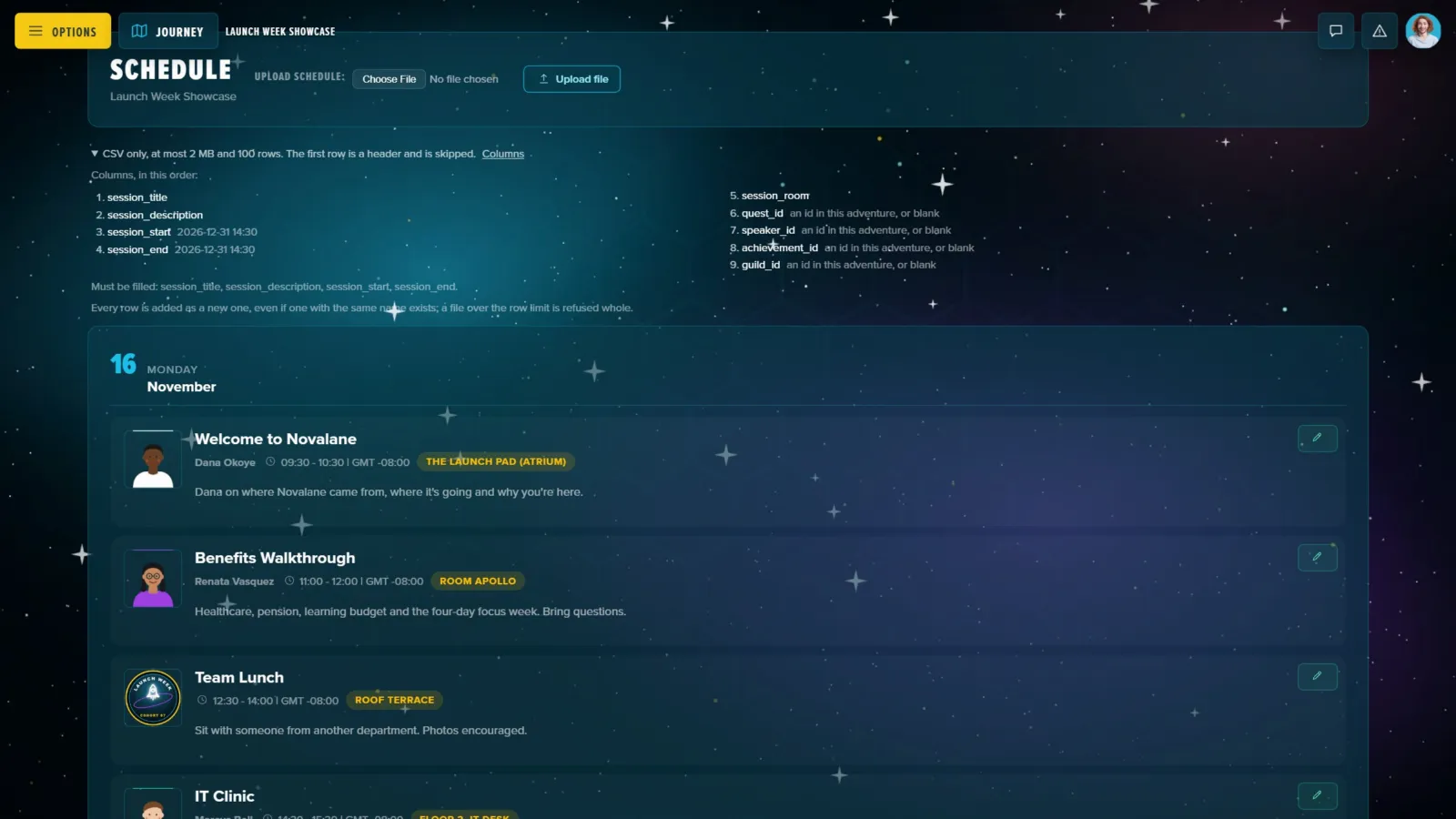
On the Schedule page itself, Upload Schedule. Up to 100 rows. Columns: session_title, session_description, session_start and session_end (all four required), session_room, then the ids of a milestone or challenge to attach (quest_id), a speaker (speaker_id), a path (achievement_id) and a guild (guild_id). Every row is added as a new session.
The speaker_id column is kept, but the schedule and the speaker pages don't show it: after an upload, tick each session's speakers in its editor.
Achievements
Manage Content → Achievements, in the header. Up to 150 rows. Columns: achievement_name (required, up to 255 characters), achievement_badge (the badge picture, required), achievement_color, achievement_code (its magic code; blank makes a new random one), achievement_content, achievement_display (badge, path or rank), the XP, EP and BLOO it pays (achievement_xp, achievement_ep, achievement_bloo), achievement_max and achievement_order. Achievements land on the template. To hand an existing achievement to a list of people instead, see Awarding an achievement below.
Items
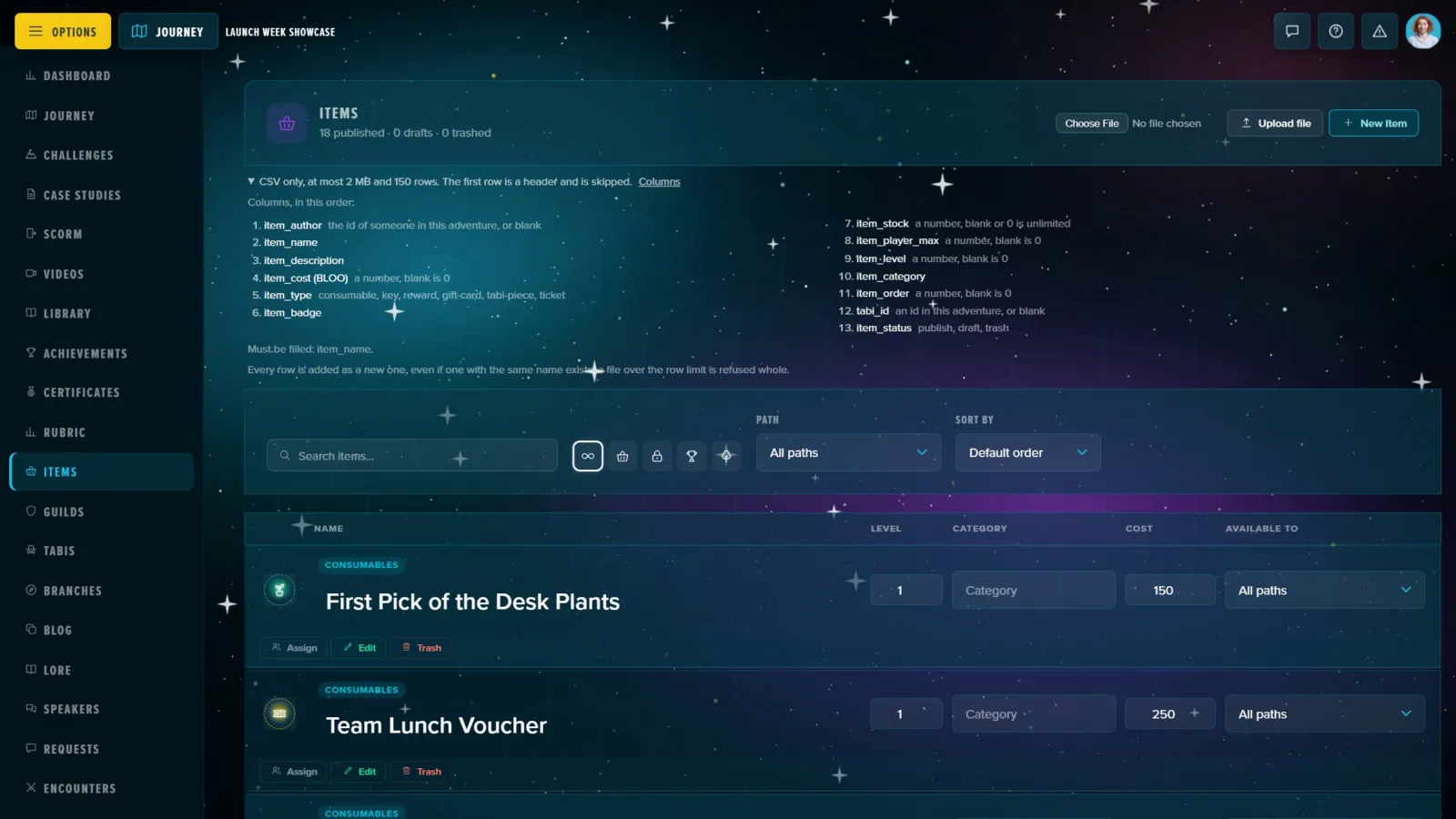
Manage Content → Items, in the header. Up to 150 rows. Columns: item_author (the id of someone in this Adventure, or blank), item_name (required, up to 150 characters), item_description, item_cost (in BLOO), item_type (consumable, key, reward or tabi-piece; gift-card and ticket are Enterprise types), item_badge, item_stock, item_player_max, item_level, item_category, item_order, tabi_id (the Tabi a piece belongs to, an id in this Adventure, or blank) and item_status (publish, draft or trash). Numbers left blank are 0.
item_stock blank or 0 means unlimited, and keys and rewards are always unlimited, as in the item editor; the upload report marks those rows "(stock: unlimited)".
Challenge Questions
In a challenge's editor, on the Questions tab, once the challenge is saved. Up to 150 rows. Columns: question, correct and decoy1 (all three required), then decoy2 and decoy3. Each row becomes a multiple-choice question with one right answer among the decoys; other question types are made in the editor.
Guilds
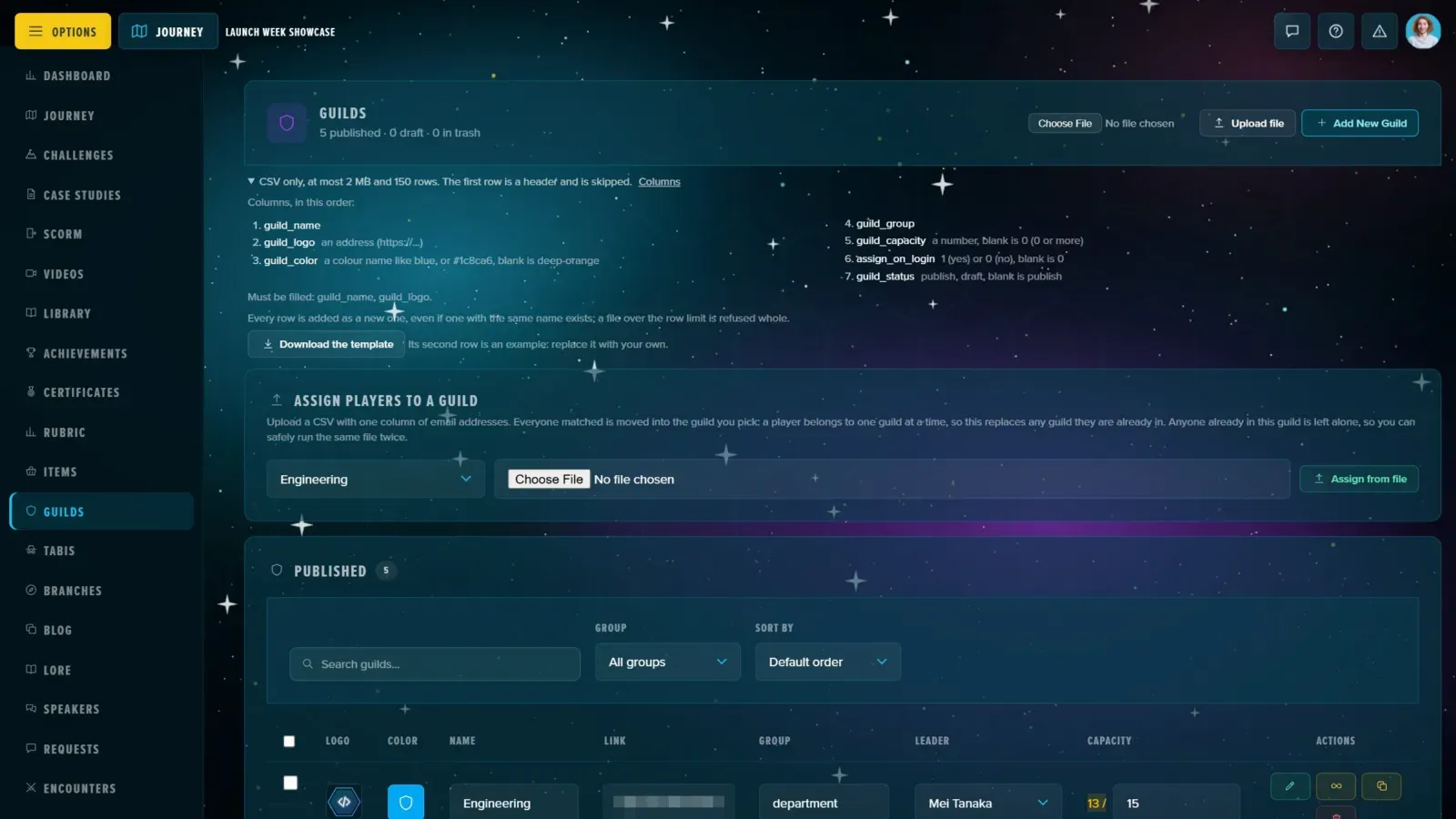
Manage Content → Guilds, Upload file beside Add New Guild. Up to 150 rows. Columns: guild_name (required, up to 255 characters), guild_logo (a web address, required), guild_color (a colour name like blue or a code like #1c8ca6; deep orange when blank), guild_group, guild_capacity (a number, 0 or more; blank is 0), assign_on_login (1 for yes or 0 for no; blank is 0) and guild_status (publish or draft; publish when blank). Guilds land on the Adventure you're in, since a cohort keeps its own. Download the template gives a file with an example row.
Uploads That Work on People
These take an email address per row and act on people already enrolled, or enrol them:
- The player roster: Manage Players → Add Players → Bulk import from CSV, with a Download CSV Template built for this Adventure. Columns: Email (required: an existing account is enrolled, a new one is created), Nickname, Password, First Name, Last Name or a single Name, Language (such as
en_USores_MX), Guild, and one column per Player Meta field. The whole file is read in your browser and imported row by row, with no row limit, and checked against the roster when it finishes. Comma, semicolon and tab separated files all work here. Passwords follow the platform's rule (12 to 50 characters). See Enrolling Players & Assigning Roles. - Profile data: the Player Meta Manager's Import CSV tab fills in many profiles at once, matched by email, previewed before anything is written. See Managing Your Player Roster.
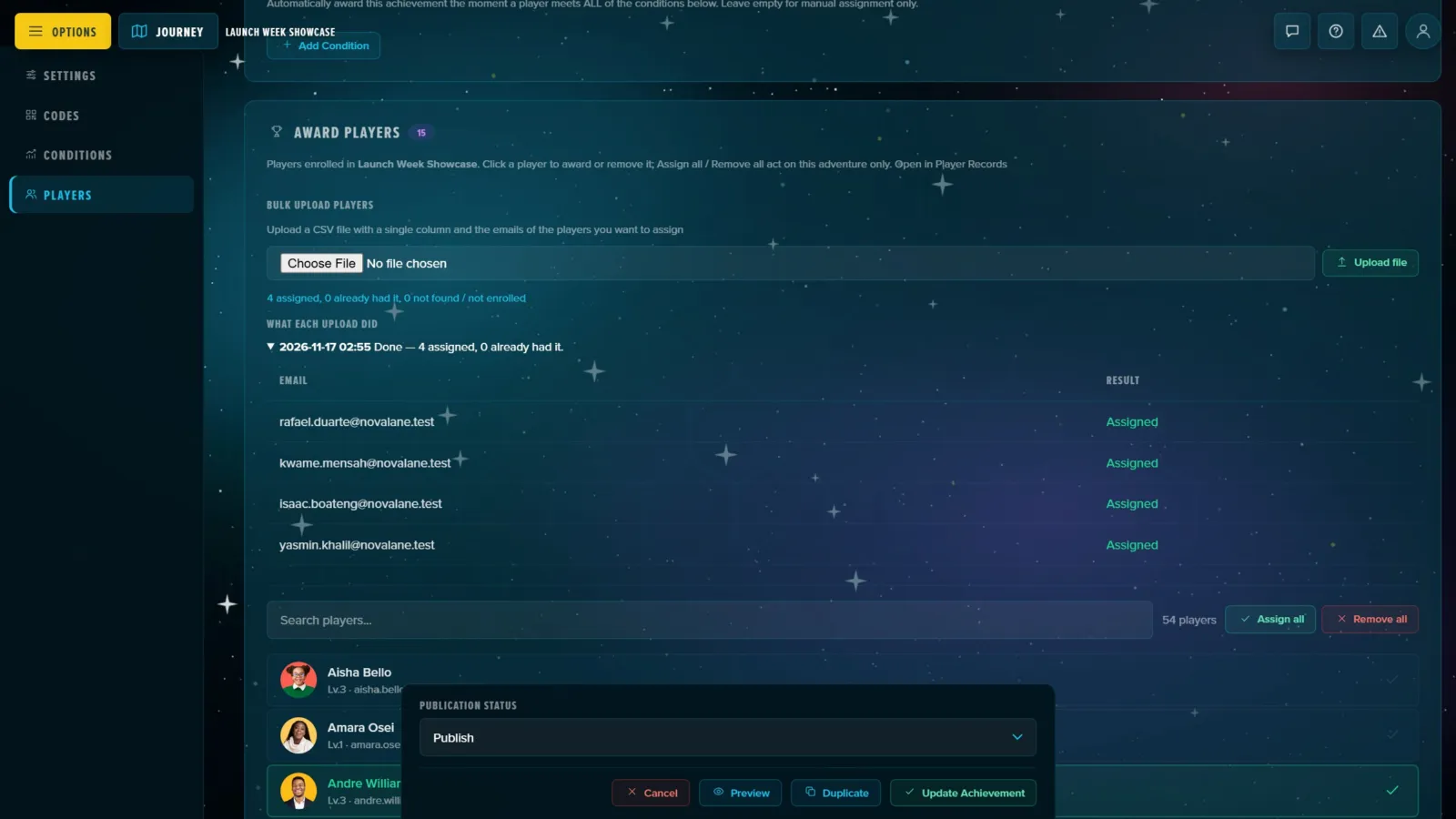
- Awarding an achievement: in an achievement's Players tab, Upload a CSV of email addresses. Everyone on it who is in this Adventure gets it; anyone who already has it is left as they are. What each upload did keeps the last runs, with every address's result: assigned, already had it, not yet the level it needs, already holds a path from this branch, or not found in this Adventure.
- Filling a guild: Manage Content → Guilds, Assign players to a guild. Everyone matched is moved into the guild you pick (a player belongs to one guild at a time); running the same file twice is safe.
- Picking email recipients: on Email Notifications, Select from a CSV selects everyone in this Adventure whose address is in the file's first column.
- Grading: the Milestone Review's Upload Reviewed CSV reads back grades, validation and comments. See Reviewing & Grading Submissions in Bulk.
Exports
Everything you can download as a CSV:
- the Players spreadsheet (with email addresses), and the Player Meta Manager's roster with every field;
- a milestone's Grade & Review CSV, its Validation list, and the pending players' email addresses;
- Case Study Entries (one column per answer) and Video Watch Stats;
- the Challenges and SCORM reports in Manage Content, and the Surveys tab of Stats (one row per player, a column per question);
- each tab of an email campaign's Send Log;
- for platform administrators, Manage Users (what the filters show) and the sign-in log.
Every export is formula-safe. A cell that starts with =, +, -, @, a tab or a line break gets an apostrophe in front, so a spreadsheet shows it as text instead of running it. A player who names themselves =HYPERLINK(...) can't plant anything in your spreadsheet. Plain numbers, negative ones included, are left as they are. Files open cleanly in Excel, accents and all.