The Library gives players something to revise from: study notes and a glossary for every module, slide deck, case study and video in the Adventure, written by the A.I. from that material alone, never from its questions or answers. You read and correct every set before players see it. Players find the published notes on their Resources page, and Cooper teaches and quizzes from them.
What It Builds From
Every step that carries material is a source: a SCORM Package, a Slides (PDF) deck, a Case Study (HTML) and a Video. Each source gets its own set of notes, with its own short glossary of the terms it uses. An Adventure with none of those steps yet has nothing to build; add one as a step and it shows up in the Library.
The Library Tab
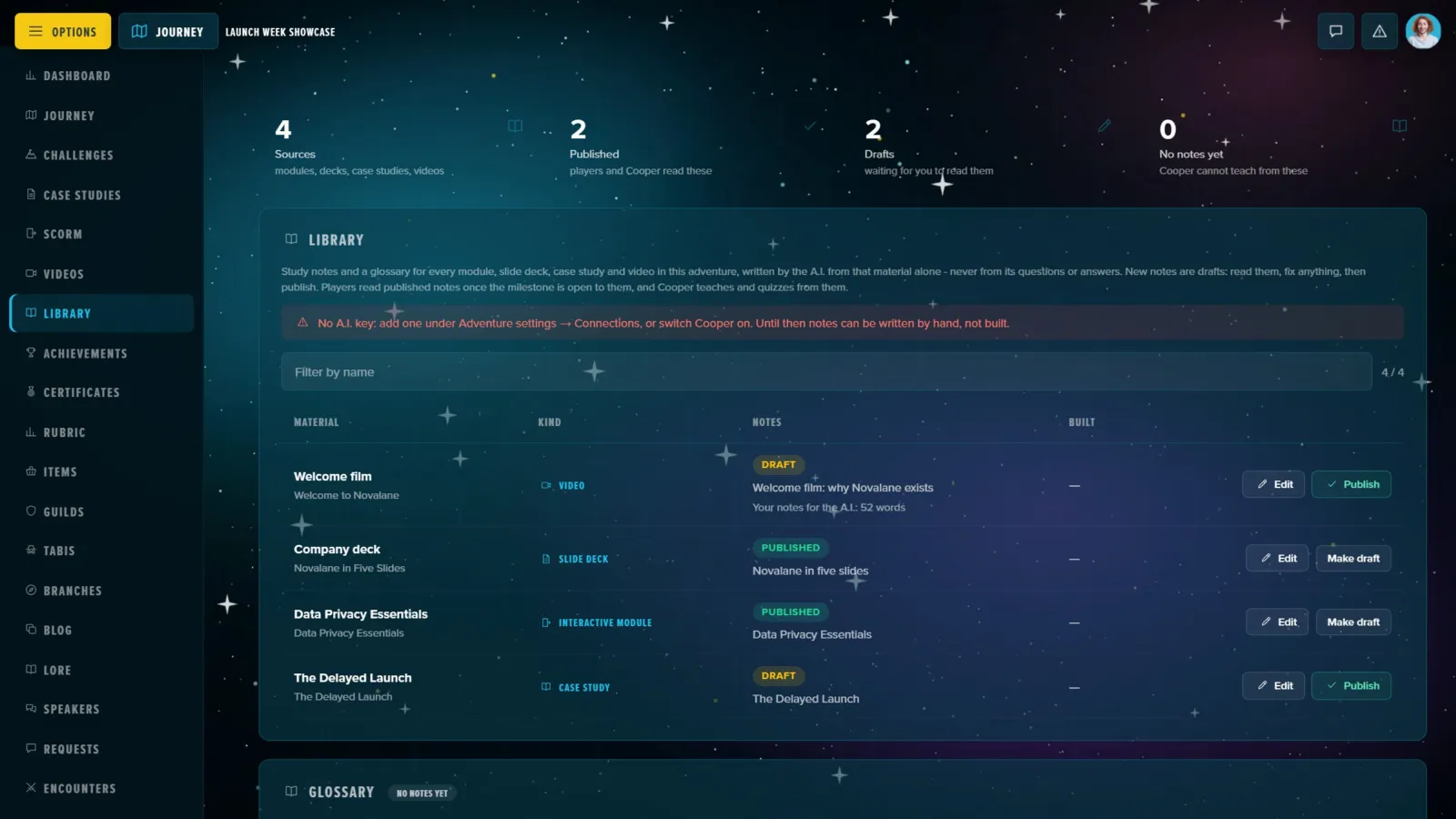
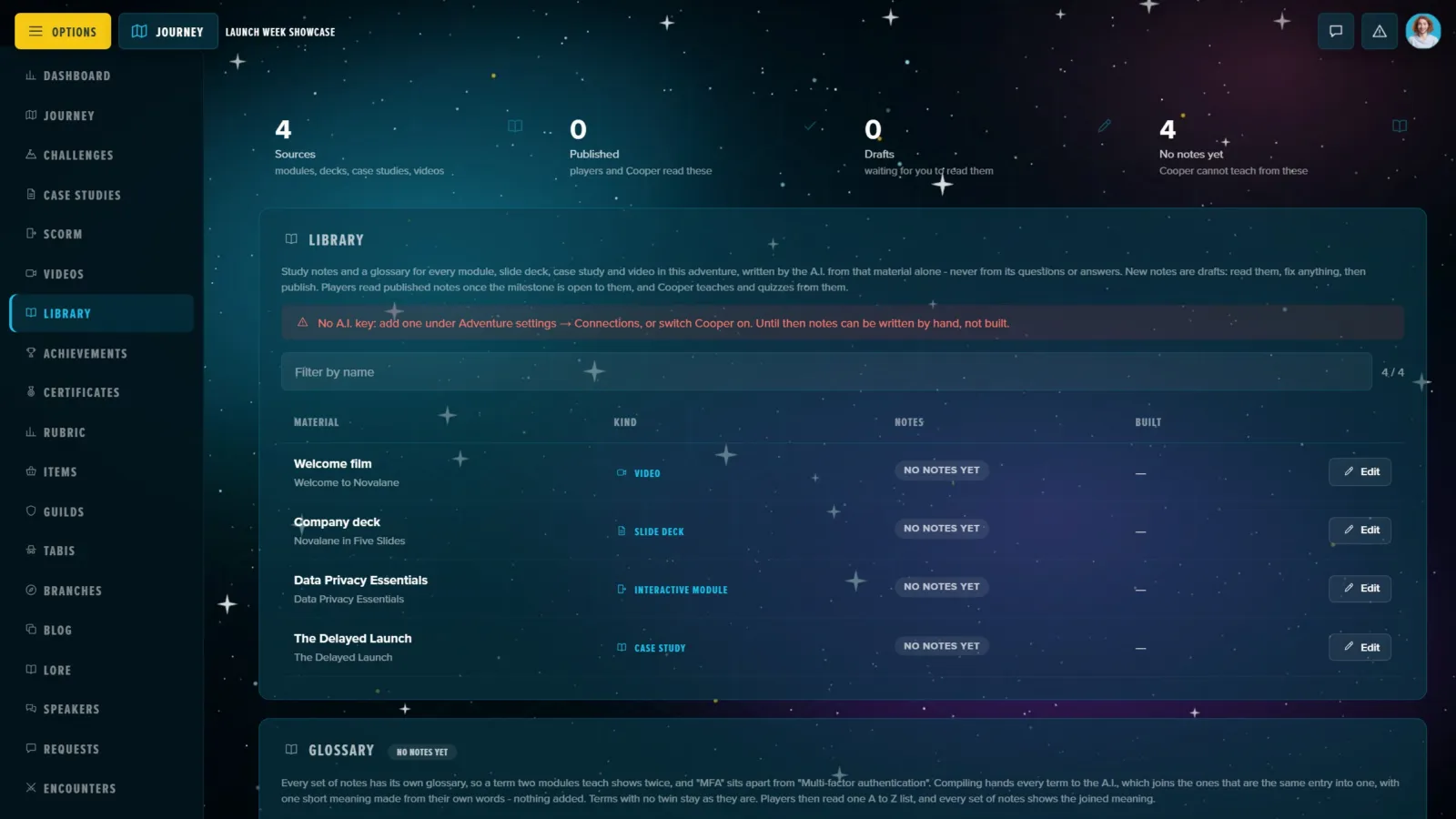
Open Manage Content and its Library tab. Counters at the top say how many sources there are and how many sets are published, drafts or have no notes yet. Below, it lists every source with its kind and where its notes stand: No notes yet, Writing…, Could not build, Draft or Published, and a warning when the step's material changed after the notes were written. From there:
- Build notes writes a source's notes, and Build again rewrites them after the material changes. Build every missing note works down the whole list, one source at a time. An Adventure builds at most three sets at once, with an hourly limit on top.
- Edit opens a set of notes to read and correct (below).
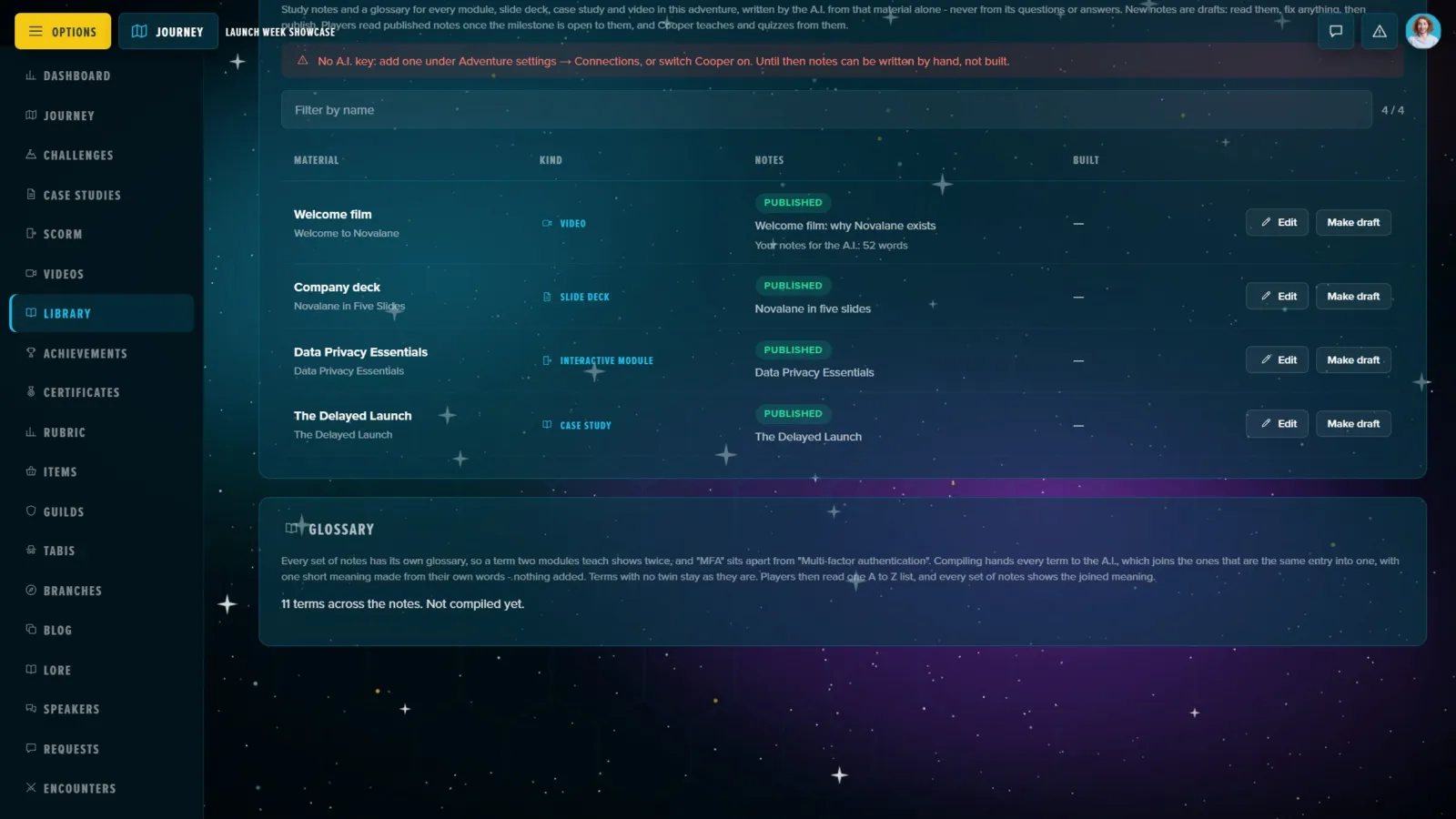
- Publish and Make draft. A draft is seen only by staff; published notes are read by players and Cooper. Publishing a set with no notes in it is refused: write or build them first.
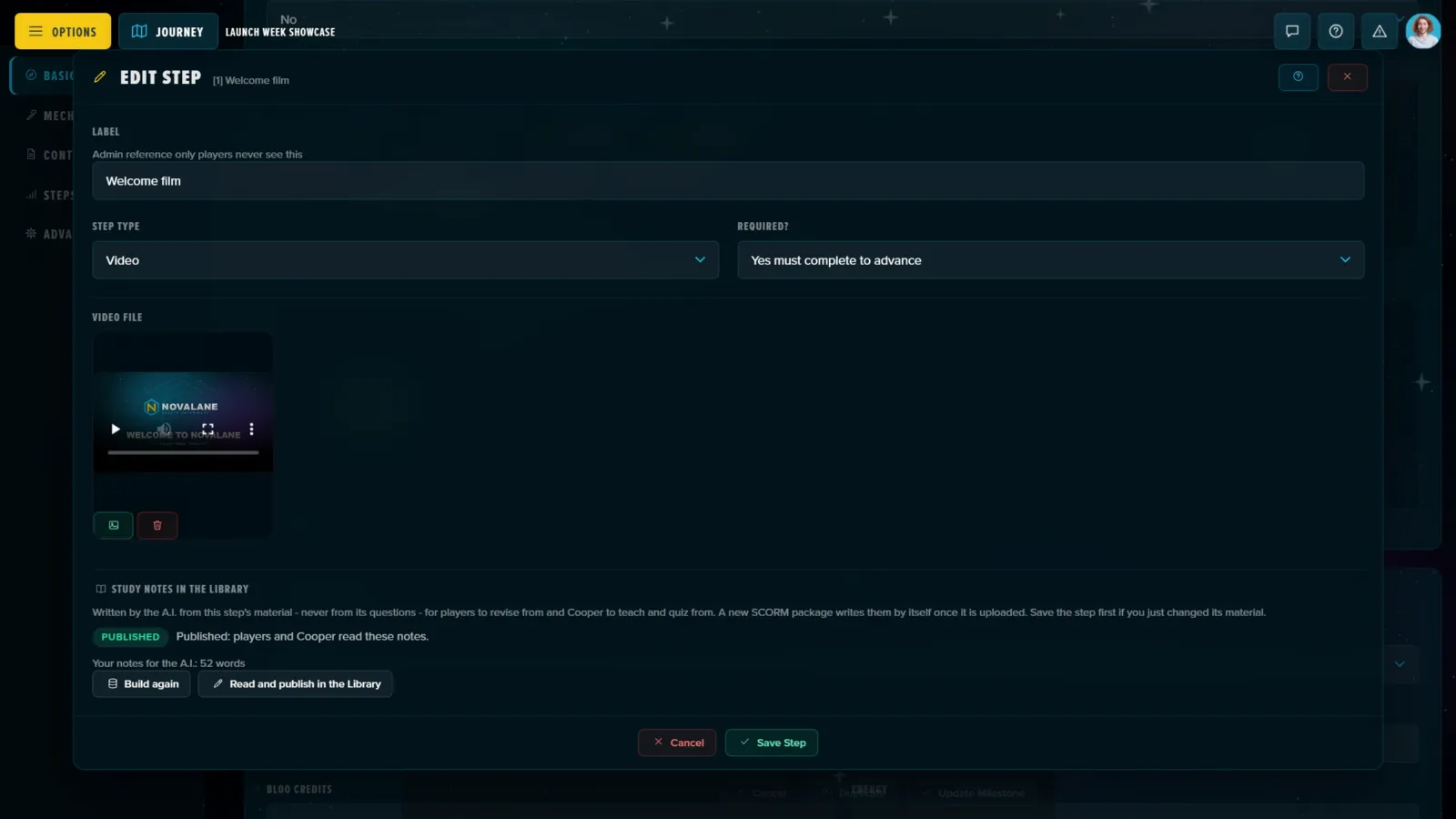
The step editor of each source carries the same thing in small: a Study notes in the Library panel saying where its notes stand, with Build notes and a link to read and publish them. When you upload or replace a SCORM package, its notes are written for you as a draft.
The Edit Window
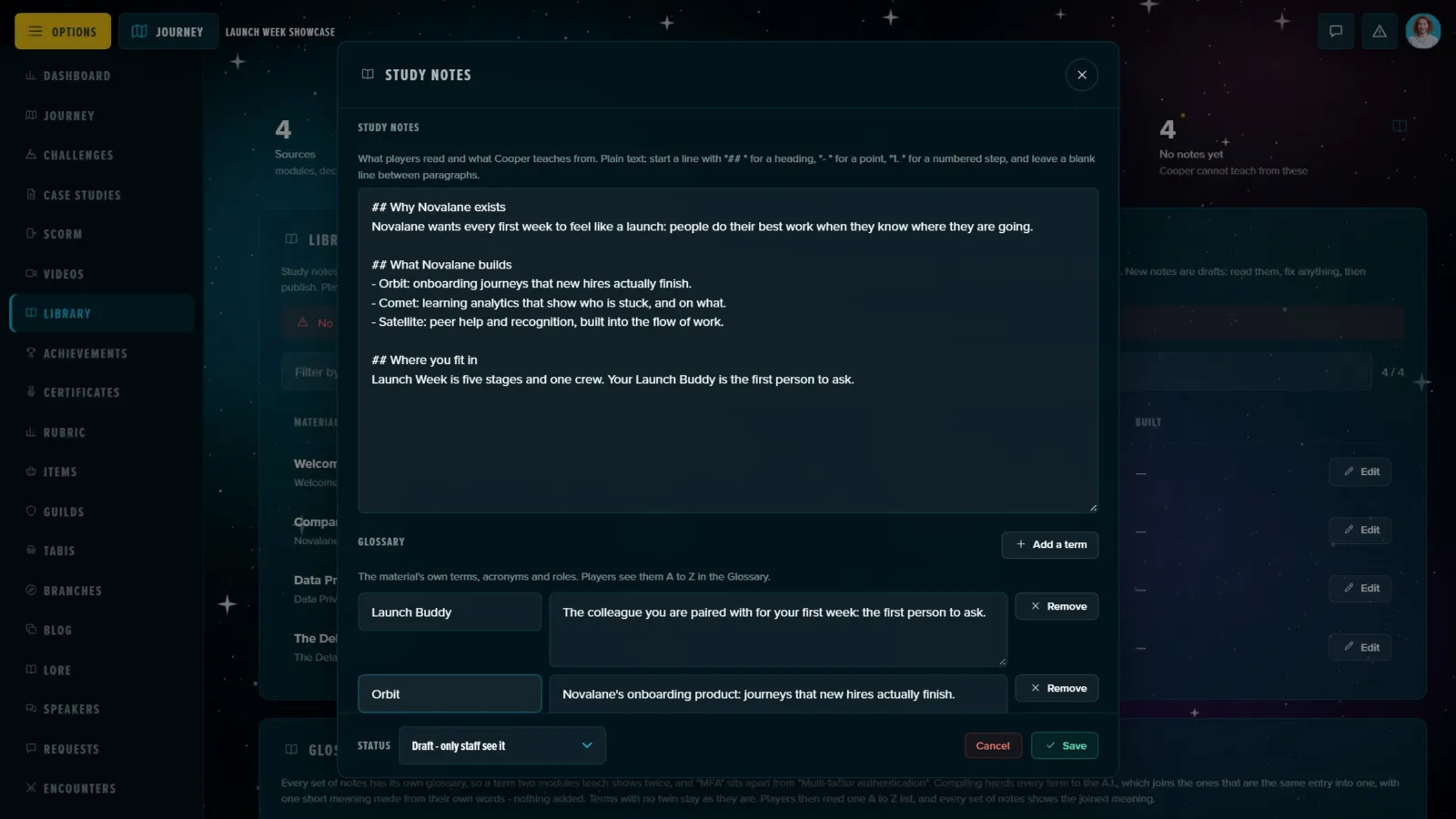
One window holds everything about a set of notes, saved with one Save:
- Title — up to 200 characters; left empty, it's the step's title.
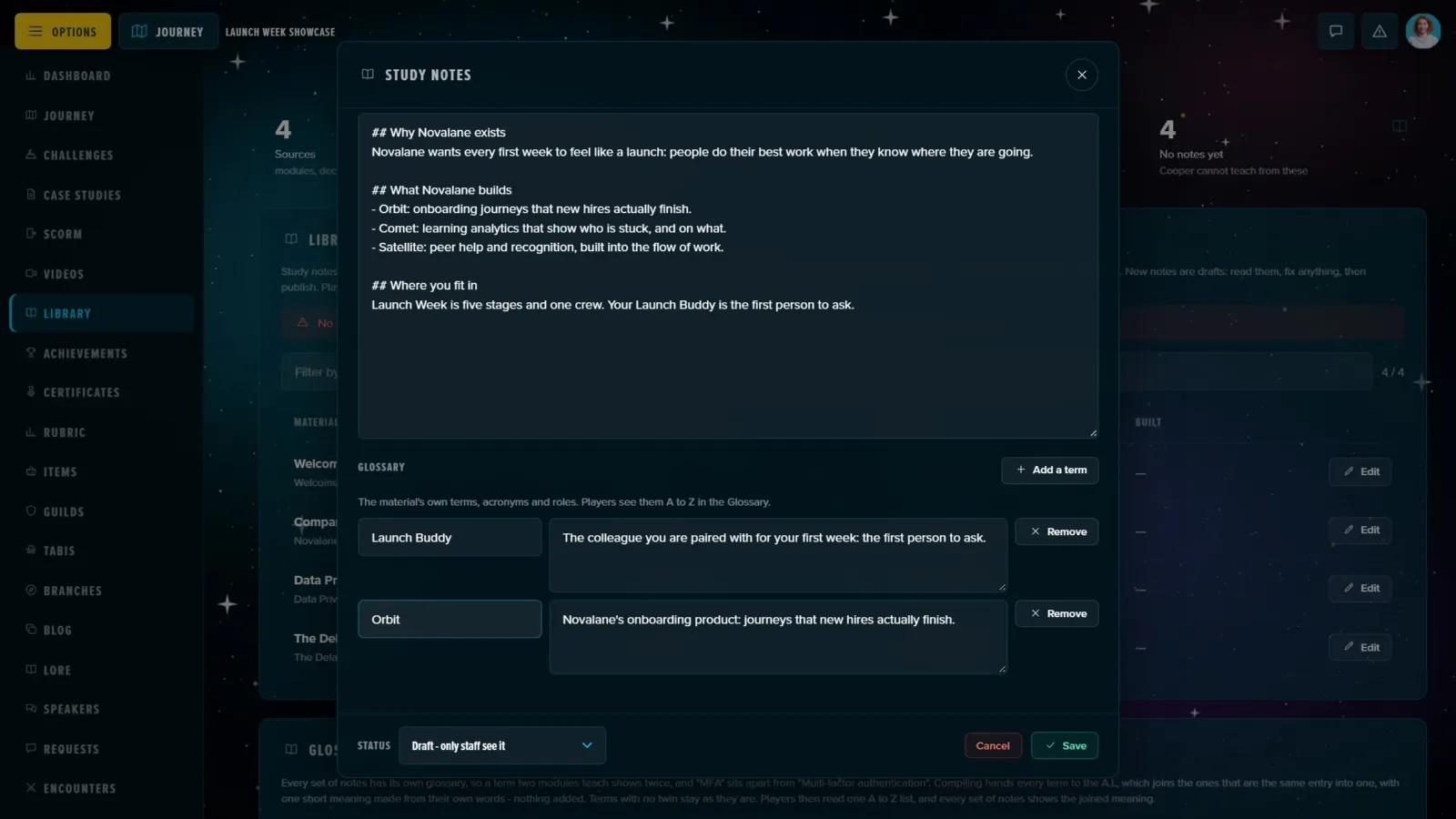
- Study notes — plain text: start a line with
##for a heading,-for a point or1.for a numbered step, and leave a blank line between paragraphs. - Glossary — the set's terms, each with what it means (Add a term, or remove one), up to 60 per set.
- Your own notes for the A.I. — below.
- Status — Draft or Published.
Your Own Notes for the A.I.
Some material can't be read: a video's soundtrack, a live session, a module that's all pictures. Each set has a box, Your own notes for the A.I., for a transcript or the key points. It's used the next time those notes are built, on top of the material, and players never see it, only the notes written from it. Pasting a video's transcript there is the way to give a video step real study notes.
Which Key Pays
Building calls the A.I., so it needs a key: the Adventure's own Claude key on the Connections pane of Adventure Settings (a cohort uses its template's), else the Adventure owner's account key (My Account → A.I. (Cooper)), or, when the Adventure has Cooper switched on, the platform's Cooper key. Without either, the Library says so in red and offers Edit only: notes can still be written by hand, just not built. The step editor's Build notes answers with the same warning.
The Glossary
Every set of notes has its own glossary, so a term two modules both teach shows up twice, and "MFA" sits apart from "Multi-factor authentication". The Glossary panel under the table counts the terms across all the notes and says whether they've been compiled. Compile the glossary hands every term to the A.I., which joins the ones that are the same entry into one, with one short meaning made from their own words and nothing added. Terms with no twin stay as they are. It's offered only when a key can pay, and needs at least two terms. Read the joined entries, fix any wording, or Keep apart two terms that should stay separate, then publish. Players then read one A-to-Z list, and every set of notes shows the joined meaning.
What Players See
Once there are published notes, the Resources page becomes the player's Library, with three tabs: Study notes, one card for every module, deck and case study they've reached, with a search box over all of them; Glossary, the A-to-Z list with a box to find a term; and Resources, the files and articles described in Posts & Resources. A set of notes opens to a player once its milestone is open to them; until then it simply isn't there, so the Library never hints at what's ahead. A joined glossary entry shows only once the player can read every set of notes it joins.
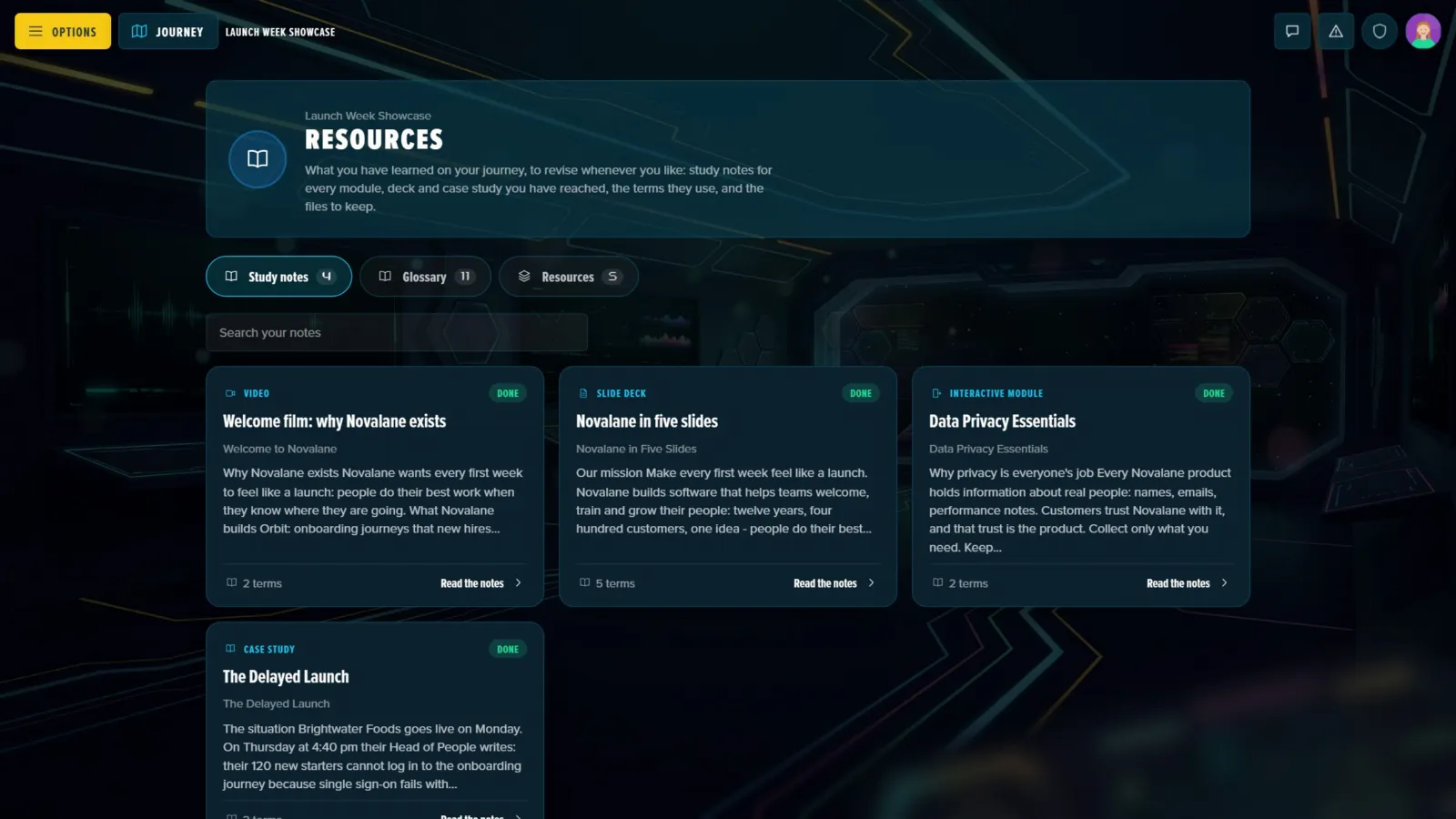
Players read the notes on the Resources page, so the Lore / Resources section has to be switched on (Adventure Settings → Sections). With it off, the Library tab warns you; Cooper still uses the published notes.
Templates and Cohorts
The Library belongs to the template, like the steps it's built from: build and publish once, and every cohort's players read the same notes.